
While a version document in a Data Sources project will begin its life linked to the same Excel file as the master document, this can be changed. This lesson explains how to choose alternative Excel files for the version documents in your project.
NOTE:
It is assumed that the only changes between alternative Excel files are the values in the cells, not the layout of the spreadsheet. Therefore, the links between the text segments in one2edit and the cells in the Excel file will remain the same as they are in the master document (e.g. segment X will always be connected to cell A7). It is not possible to have, for example, a segment in the master connected to cell A7, while the same segment in a version document is connected to cell B9.
Create version documents as normal
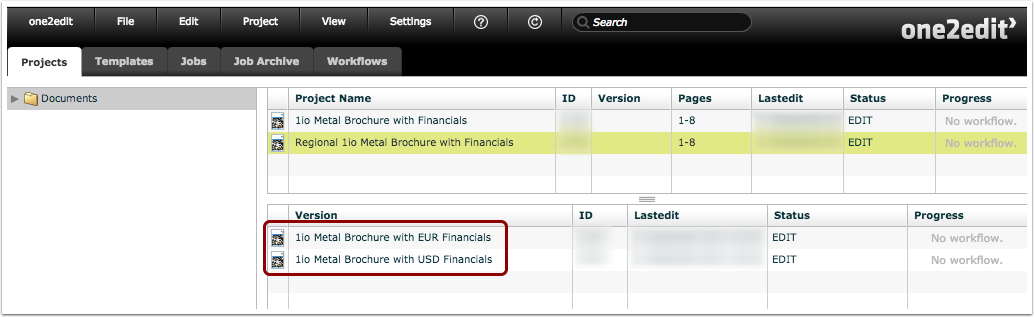
After setting up and linking segments to a Data Source in the master document, you can create version documents as normal.
By default, each version document is linked to the same Excel file as the master document.
In our example above, we have two version documents: one that will contain financial information in EUR, and the other that will contain financial information in USD.
Link a different Excel file to a version document
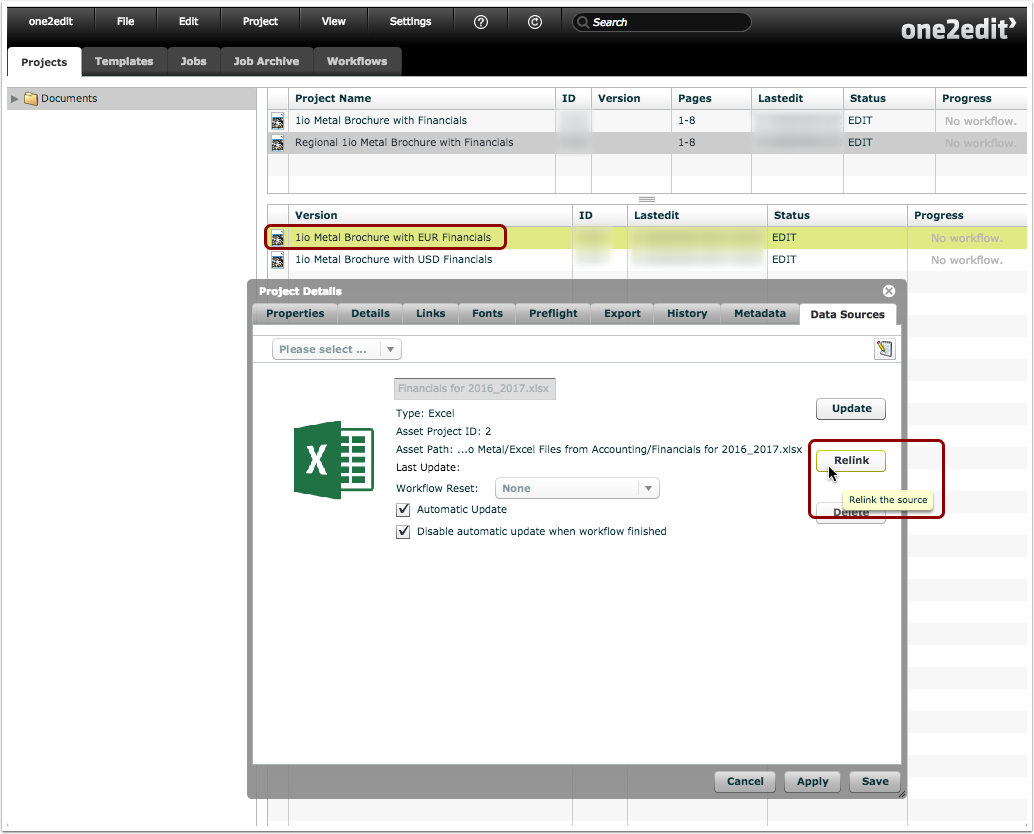
Open the 'Data Sources' tab in the version-document's 'Project Details' window.
Click the 'Relink' button to open the 'Asset Browser' window.
Choose an alternative Excel file

Select the alternative Excel file to be used for this version document, and click 'Choose'.
The version document now references another Excel file
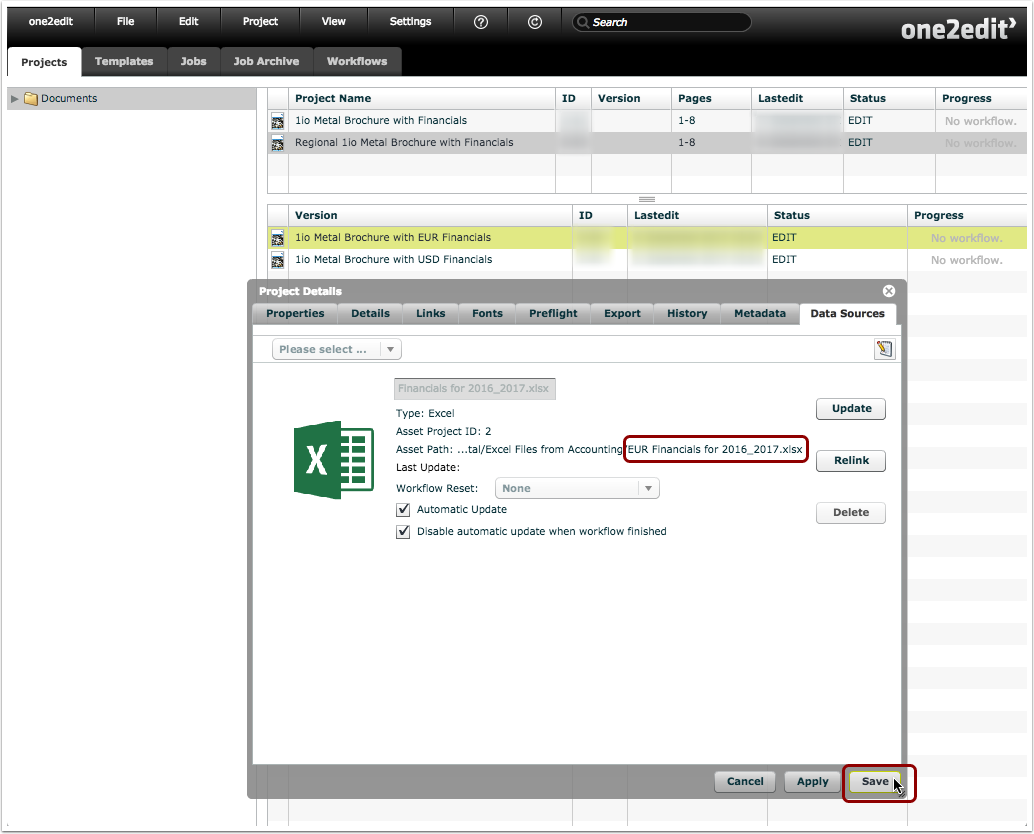
The selected Excel file is now linked to this version document.
Click 'Save' to save your changes.
NOTE:
It is assumed that the layout of the new Excel file is identical to the old Excel file. Therefore, it is not possible to change which cells each segment is linked to for the version document.
Perform the same actions for the other version documents
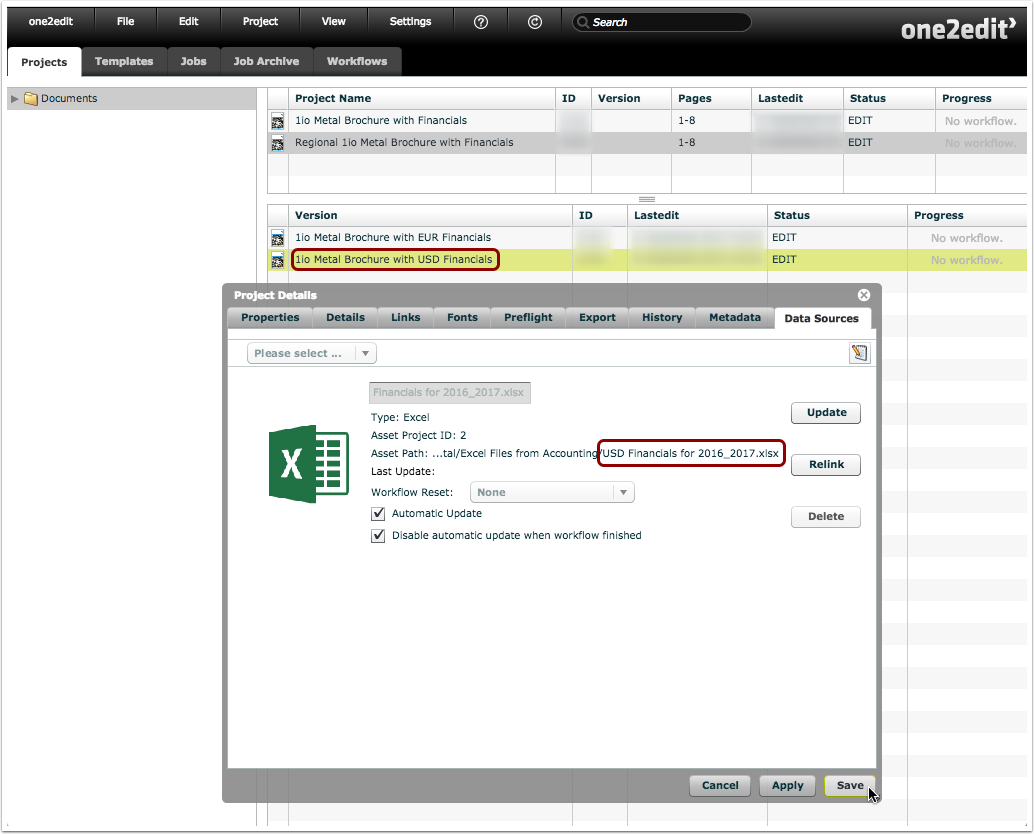
These same actions can be followed for each of your version documents.