
This lesson shows how to add a new image frame to a master document.
NOTE:
This is only valid for one2edit v3.8.x or later.
Select the 'Create Frame' tool
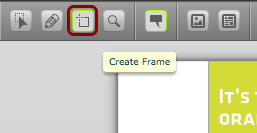
Select the 'Create Frame' tool from the one2edit™ toolbar.
NOTE:
This tool is only available in the master document.
Draw the frame
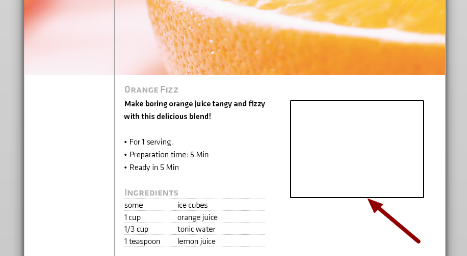
Draw the new frame in your document.
NOTE:
Once the frame has been drawn, it is possible to use the 'Edit Frame' panel on the right-hand side of the window to fine-tune the frame measurements and position.
Open menu for the new frame
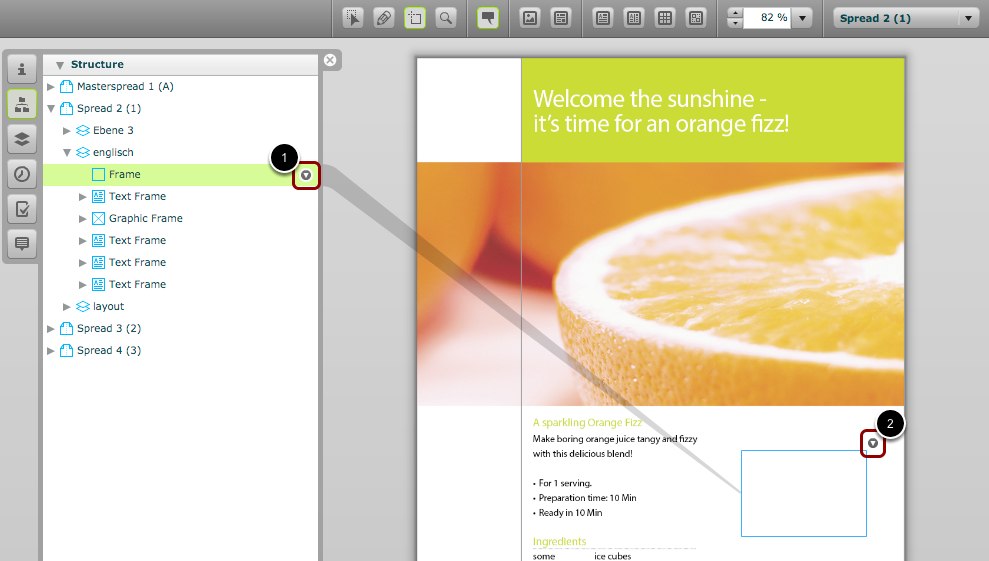
You need to define what type of content the new frame will contain.
To do this, open the frame menu:
- via the 'Structure' panel
- via the frame itself in the document preview
Move your mouse over the triangle to pop out the frame menu.
NOTE:
In the document preview, the triangle may disappear if the frame is not in focus. If that happens, you should click within the frame to select it, or select the frame via the 'Structure' panel.
Define frame content as 'Graphic'
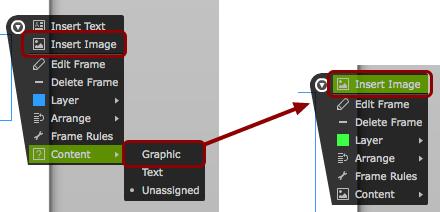
Under the frame menu, select either 'Insert Image' or 'Content > Graphic'. This will define the frame's content type as text.
In the example above we click 'Content > Graphic' to define an image frame. We then need to click 'Insert Image' to place an image within the new frame.
Replace Image
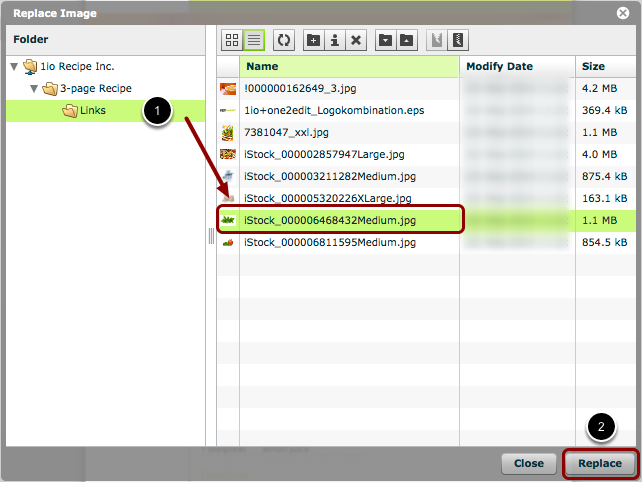
In the 'Replace Image' window:
- Select an image file from your Asset Space.
- Click 'Replace' to insert the selected image into the new frame.
Edit image
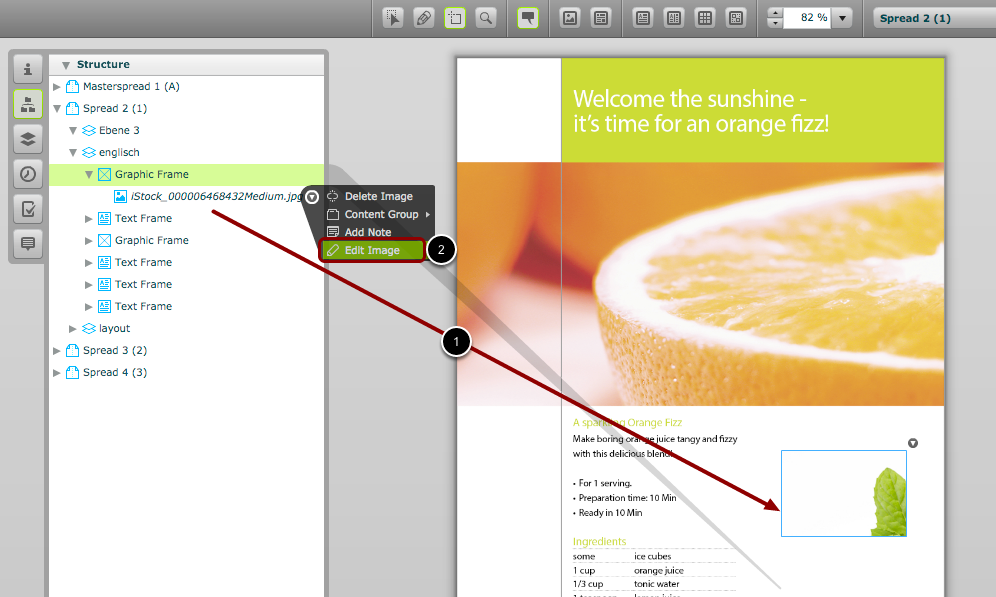
- The inserted image will be displayed in the 'Preview Area' and within the 'Graphic Frame' folder in the 'Structure' view.
- The image fitting options may need to be used to fit the image to the new frame. To access the fitting options, click 'Edit Image' in the frame menu.