
This lesson demonstrates how to delete a frame from a master document.
NOTE:
This is only valid from v3.8 of one2edit™ or later.
Select a text or image frame
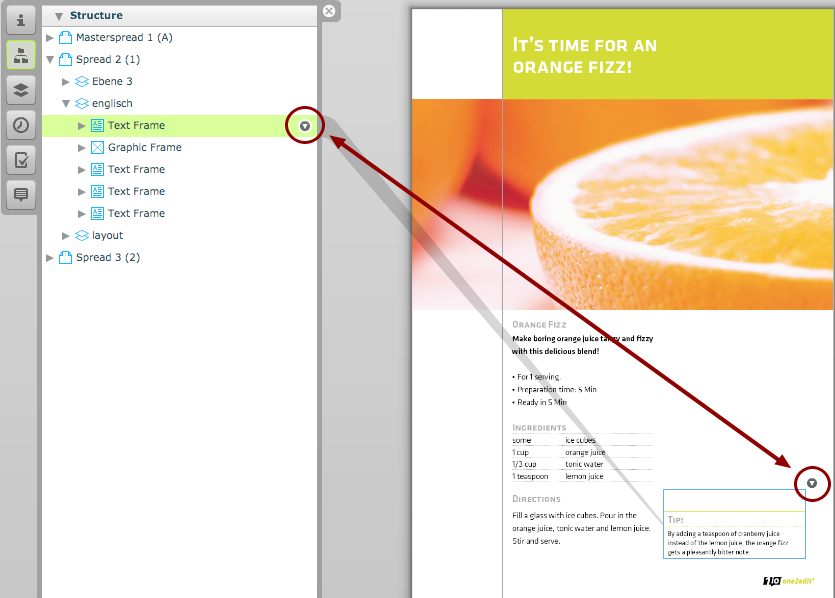
Select a text or image frame, either on the document itself or via the structure view.
There will be a drop-down menu available for the frame in both of these areas, as marked on the screenshot. It is possible to use either of these menus for frame actions.
Select the 'Delete Frame' command within the menu
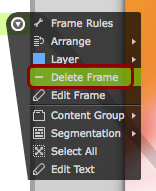
Both drop down menus (the one in the Structure view and the one in the frame itself) are exactly the same.
Select the 'Delete Frame' command to continue.
The frame has been deleted
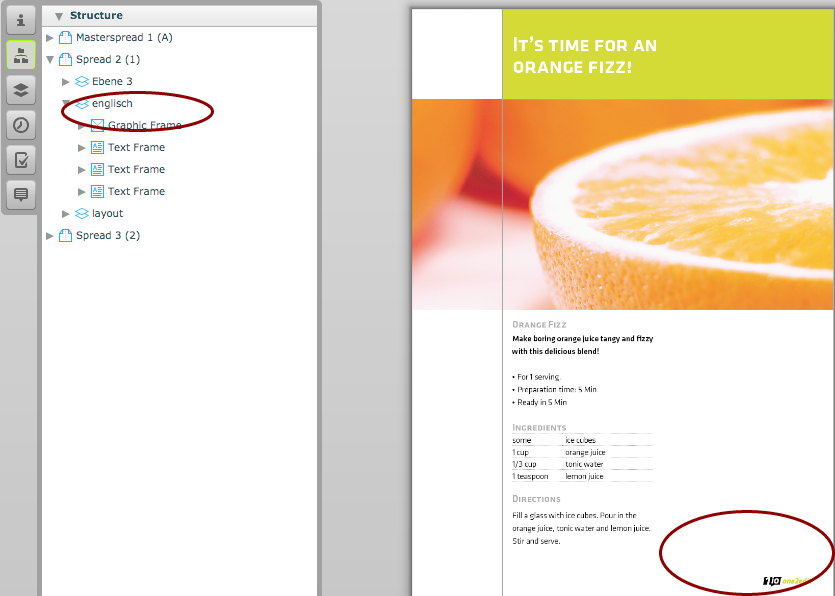
As you can see, the frame has now been deleted from the document. If the document is now saved, this frame is lost.
If the frame was deleted in error, please close the document without saving any changes. The frame will then reappear when the document is next opened.
NOTE:
Remember, deleting a frame means deleting the frame's content as well.