
In order to use one2edit™, a user needs to be assigned to a user group.
User groups grant specific permissions (e.g. administer documents/projects, delegate jobs, administer users, etc.) to the users in those groups.
NOTE:
These permissions are not to do with editing documents. Editing permissions are controlled via Content Groups and Content Rules.
Click 'Settings > Users and Groups'
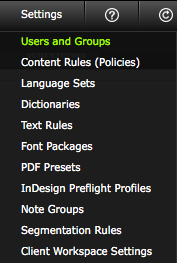
Click 'Settings > Users and Groups' to open the 'Users and Groups' window.
'Users and Groups' Window
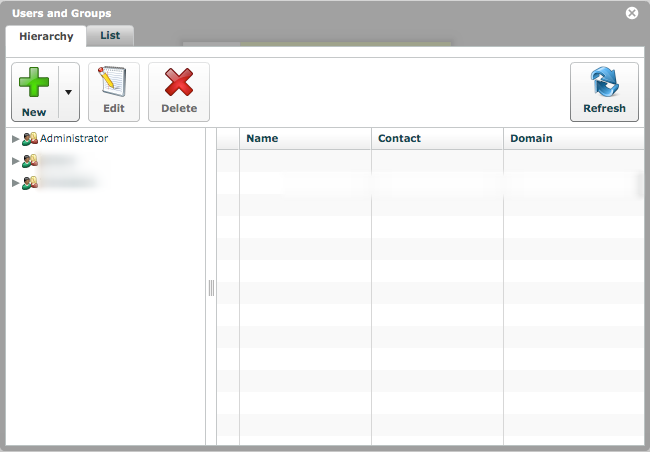
We can now see the local user groups for our workspace.
Selecting a user group will display the users within that group.
NOTE:
At this point, do not select the Administrator group. If the Administrator group is selected, then the new group that we create will be created as a 'child' group of the Administrator group.
You can de-select a selected item in one2edit™ by using the usual method for your computer's operating system (e.g. 'CMD-click' on Mac OS X, 'CTRL-click' on a Windows PC, etc.).
Create and Name a Group
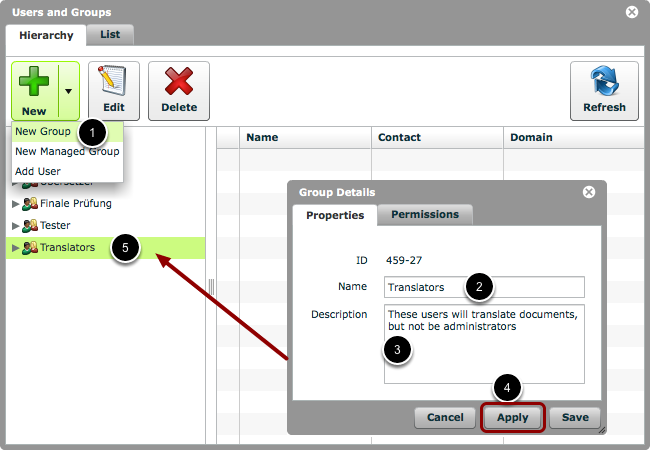
- Click 'New > New Group'.
- Give the new group a meaningful name
- Give the new group a description (optional)
- Click 'Apply'
- The new user group will appear in the 'Users and Groups' window, as shown
NOTE:
Clicking 'Apply' does not close this window. We just needed to create the group in order to activate the 'Permissions' tab.
Assign Permissions to a User Group
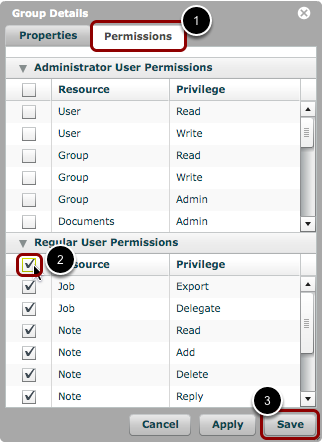
- Click the 'Permissions' tab. This will only be active if you have created the group by clicking the 'Apply' button (as mentioned in the previous step).
- Check/tick the boxes beside the permissions for this group. In this case, we have assigned all regular user permissions to this group.
- Click 'Save'.
NOTE:
You can assign any subset of permissions to a group.
For example, if you do not want your 'Translators' group to delegate jobs to other users on the workspace, you should un-check the "Job - Delegate" option.
Add a User to a Group
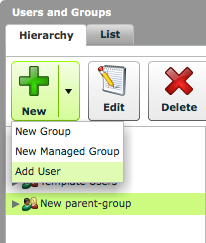
- Click on a user group to select it.
- Click 'New > Add User' to add a user to the selected user group.
NOTE:
For further details about adding users to user groups, please refer to the appropriate lesson in the Knowledge Base.
Sidebar - 'Parent' and 'Child' User Groups
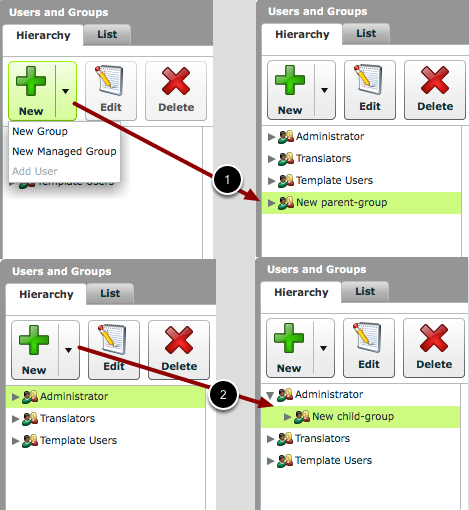
- If no user group is selected when 'New > New Group' is clicked, then the new user group will be a 'parent' user group, i.e., created at the top level.
- If a user group is selected when 'New > New Group' is clicked, then the new user group will be a 'child' user group with the selected user group as a 'parent', i.e., created one level down in the hierarchy.
NOTE:
'Child' user groups may only have a subset of the permissions assigned to their 'parent' group.
NOTE:
If you do create a 'child' user group, the branch will not expand automatically. You will need to manually expand it in order to see the new group and add users.
Sidebar - Creating a managed user group
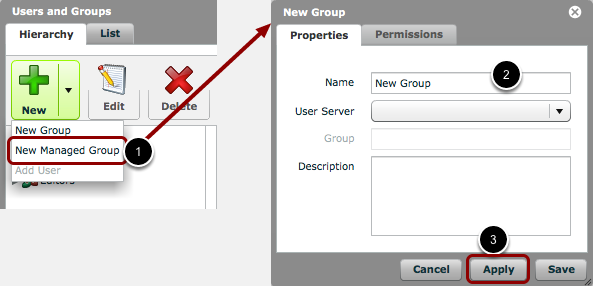
You can create a group that is populated with users from your existing user server.
- Click 'New > New Managed Group'
- Fill in the properties for the user server
- Click the 'Apply' button
NOTE:
Clicking 'Apply' does not close this window. We just needed to create the group in order to activate the 'Permissions' tab.