
Each language set contains its own Translation Memory (TM).
This means that it is possible to have language sets dedicated to a specific brand or product. These language sets can contain the wording and phrases used for that particular brand/product.
Click 'New > New Language Set'
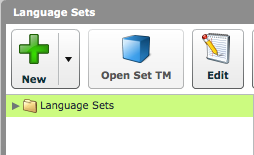
Select a target folder for the language set and click 'New > New Language Set'.
Name the language set
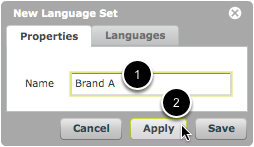
- Type a name for the language set.
- Click 'Apply'.
Click the 'Languages' tab
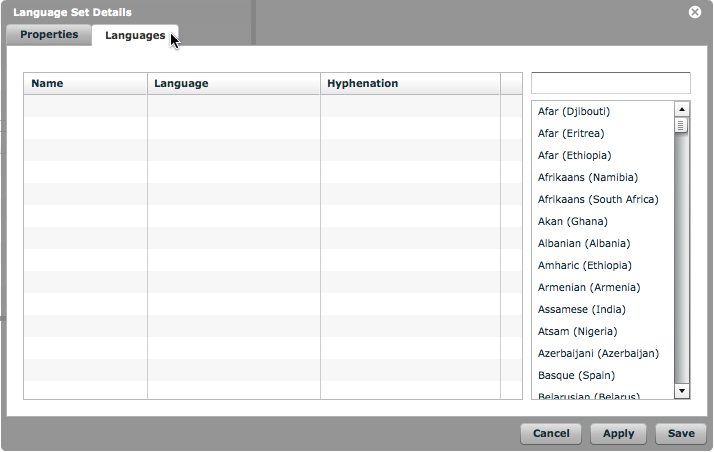
Click on the 'Languages' tab.
It is from this tab that you can assign the various languages for this language set.
Drag and drop languages
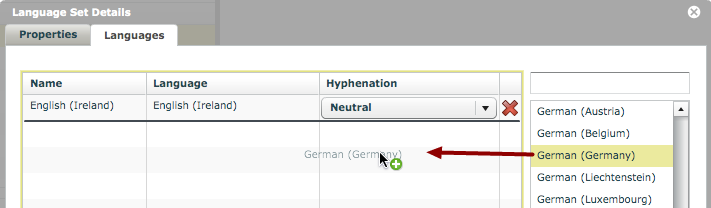
Simply drag and drop the desired languages from the list on the right.
NOTE:
It is vital that you also add your source language (the language you are translating from) to your language set. Failure to do so will mean that translations cannot be saved to your Translation Memory.
Click 'Save'
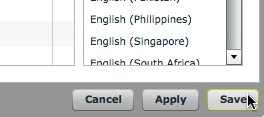
When all languages have been assigned to the language set, click 'Save'.
Language set created
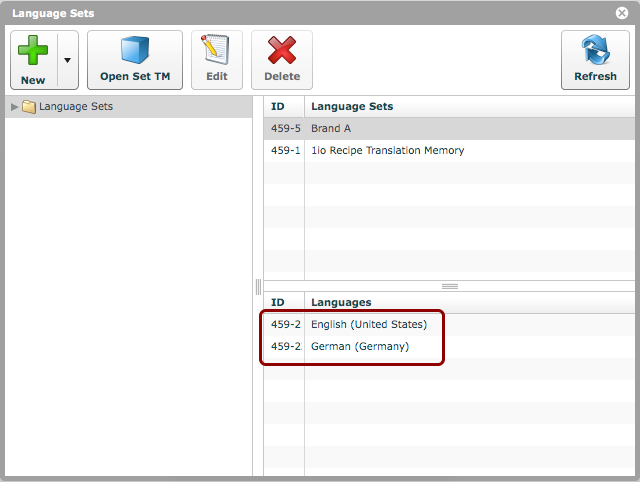
Congratulations! You have created your first language set!
When a language set is highlighted, the languages contained within are shown in the 'Languages' panel, as shown.
Edit or delete language sets
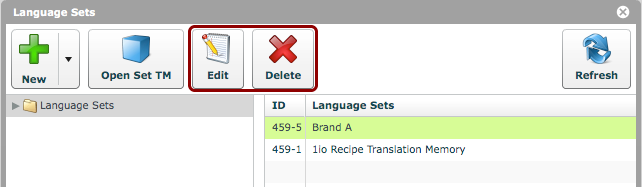
When a language set is selected, you can choose to edit or delete the set using the appropriate buttons.