
This section describes the 'File' menu in the 'Templates' tab.
NOTE:
Please note that this section only describes the menu options at a high-level. For more in-depth explanations, please refer to the appropriate parts of the manual.
Menu: 'File'
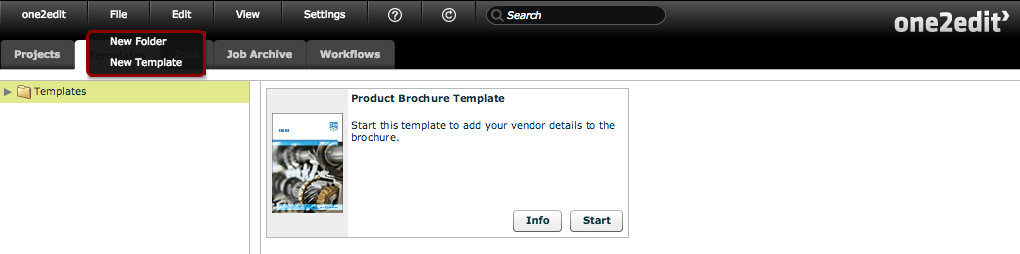
Clicking on the 'File' menu offers you some menu options.
NOTE:
The options available will differ depending on if a folder is currently selected or not.
'File > New Folder'
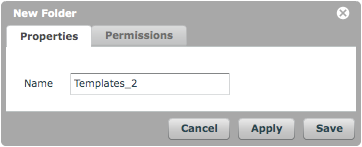
With the 'New Folder' command, you can create a new folder and assign folder access permissions.
NOTE:
The folder needs to be created with the 'Apply' (or 'Save') button before the 'Permissions' tab becomes active.
'File > New Template' > 'Properties' tab
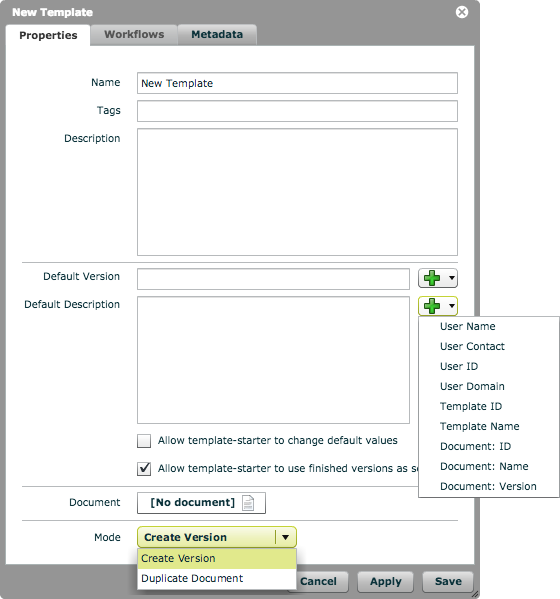
Here you can see the 'New Template' window.
Within the 'Properties' tab, there are the following fields:
- Name: The display name of the template.
- Tags: The search tags for the template, which can be searched for in the 'Search' bar at the top of the window.
- Description: The description displayed for the template.
- Default Version: The default name of any document created using this template. If this is left blank, then the version name will also be blank.
- Default Description: The default description that will be assigned to any document created using this template.
- Allow template-starter to change default values: Permit the user who clicks 'start' for this template to change the default version and description.
- Allow template-starter to use finished versions as source: Permit the user who clicks 'start' to use one of their previously-completed jobs from this template as the basis for their new job.
- Document: Click here to choose the master document for your template.
- Mode: 'Create Version' will create a version document in whatever project is chosen under 'Document' and assign a workflow to it. 'Duplicate Document' will create a new master document in a chosen folder and assign a workflow to it.
NOTE:
There are variable values permitted in both the 'Default Version' and 'Default Description' fields:
- User Name: The name of the user who starts a job from this template.
- User Contact: The email address of the user who starts a job from this template.
- User ID: The ID of the user who starts a job from this template.
- User Domain: The login domain of the user who starts a job from this template.
- Template ID: The ID of this template.
- Template Name: The name of this template.
- Document ID: The ID of the document referenced by the template.
- Document Name: The name of the document referenced by the template.
- Document Version: The version text of the document referenced by the template.
NOTE:
The 'Workflows' tab will not be active until the template has been created (by pressing either the 'Save' or 'Apply' buttons).
'File > New Template' > 'Metadata' tab
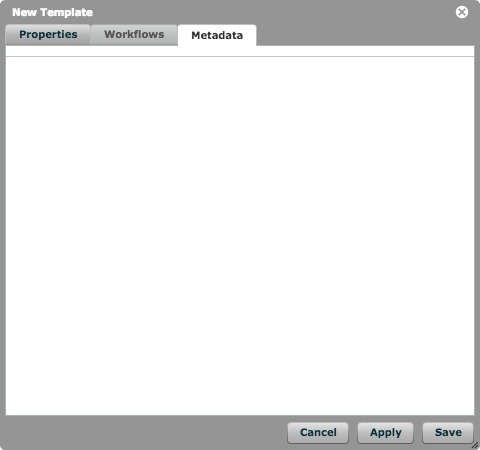
The 'Metadata' tab allows you to add XML metadata to a document. This metadata can then be seen and used via API calls, e.g., when integrating with another system.