
This lesson is about how to manually create a project in one2edit™ (i.e. without the use of the Project Creation Assistant).
NOTE:
This lesson assumes that you have already uploaded the .zip archive of your InDesign® Package to your one2edit asset space.
'File > Browse Asset Spaces'
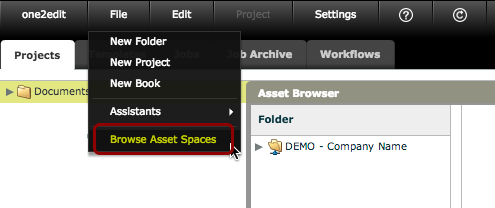
Select a folder in the 'Projects' tab and click on 'File > Browse Asset Spaces' to open the Asset Browser.
Extract the Archive
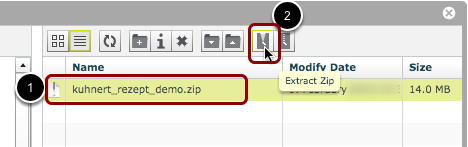
- Select your .zip archive.
- Click the 'Extract Zip' button.
This will extract the compressed document and associated links to a new sub-folder.
NOTE:
If you have not already uploaded the .zip archive containing your InDesign® package, then please refer to the appropriate lesson in this Knowledge Base.
Open the new Folder
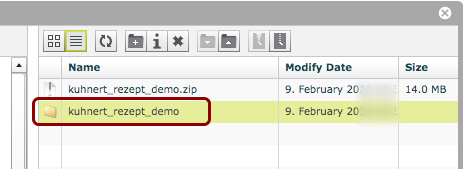
Double-click the new document folder in the right-hand pane to open it.
Check for the Links Folder
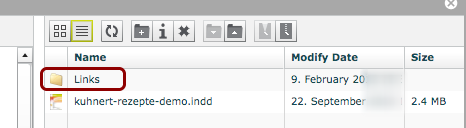
Ensure that a 'Links' folder exists.
If not, then it was missing from your archive and you should re-create your InDesign® document package and archive file to include the document links.
NOTE:
There may also be a 'Document fonts' folder. Such a folder is only required if you do not have your fonts centrally uploaded via 'Settings > Font Packages'.
Create Project from InDesign® Document
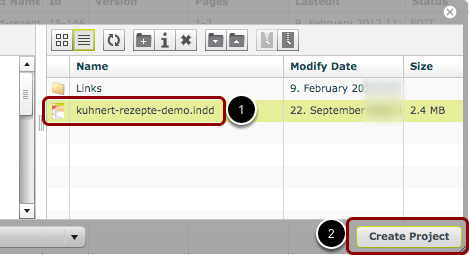
- Select the InDesign® document.
- Click 'Create Project' in the bottom-right corner of the window.
This will create a one2edit project in your selected folder using your InDesign document as the master document.
NOTE:
If the 'Create Project' button is grayed out, then it means that you have not selected a target folder in your 'Projects' tab, or that a project has already been created from this document.