
A one2edit™ project typically contains a 'Master' document and one or more 'Version' documents.
A version document starts off as a copy of the master document. A workflow is then applied to the version document, and the content of that version document is translated/localized.
Create a Version Document
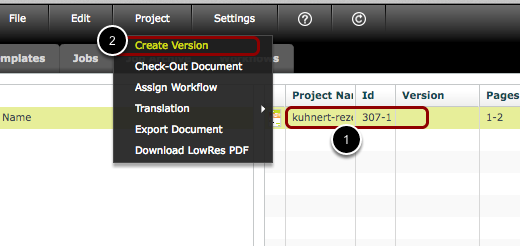
- Select the master document by clicking on it once.
- Click 'Project > Create Version'.
Version Document has been created
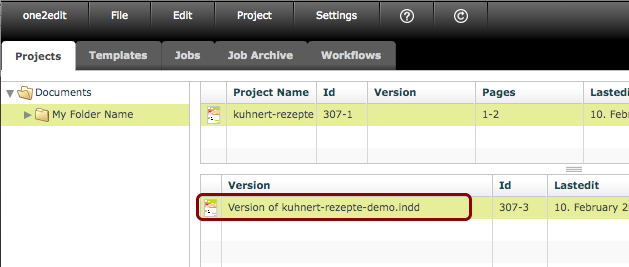
You will now see your new version document in the 'Version' section of the one2edit window.
By default, the name will be 'Version of...' followed by the master document name.
NOTE:
If the master document properties ('Edit > Properties') contain a value in the 'Version' field, then that value shall be used as the name of the version document.
Update the Document Name
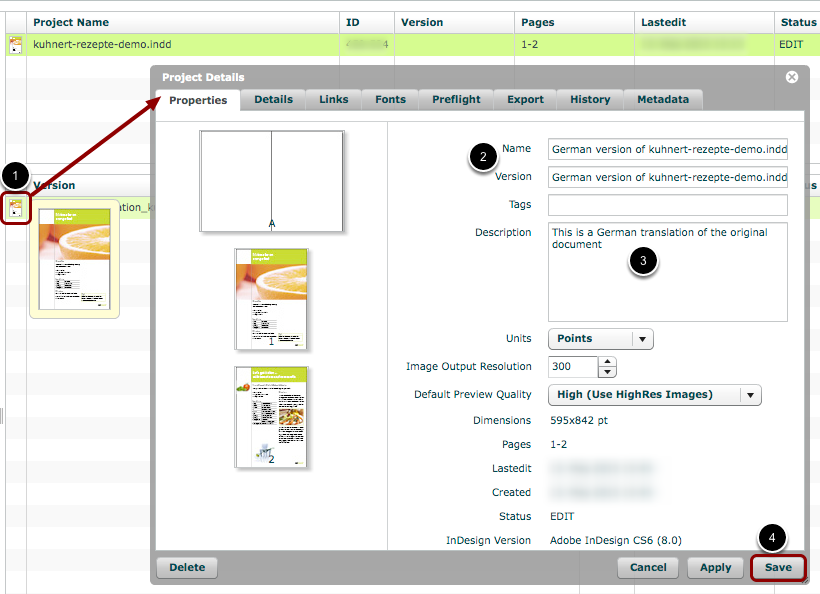
- Click on the document thumbnail to the left of the document (or select the document and click 'Edit > Properties').
- Rename the document in the 'Name' and 'Version' fields.
- Add a description of the document (optional).
- Click 'Save'.
NOTE:
For a version document, the 'Version' value is displayed as its name rather than the 'Name' value.