
Workflows can be created in advance and saved and templates. These workflow templates can then be assigned to version documents in order to create jobs, and save you from having to create a workflow from scratch every time.
Version documents do not have a workflow by default

When a version document is manually created, the progress column will show 'No workflow'. This is because no workflow has been assigned to, or created for, this document.
Open the Workflow View
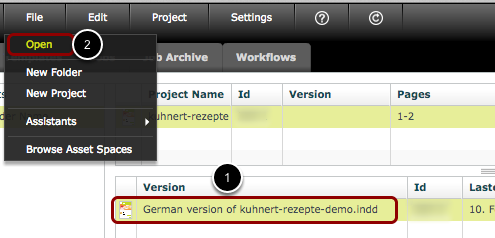
- Double-click a version document to open the workflow view for that document.
- Alternatively, you may select the document and click 'File > Open'.
Click 'Assign Workflow from Template'
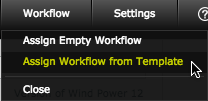
Click 'Assign Workflow from Template' to use a pre-created workflow with this version document.
Choose the Workflow Template to assign
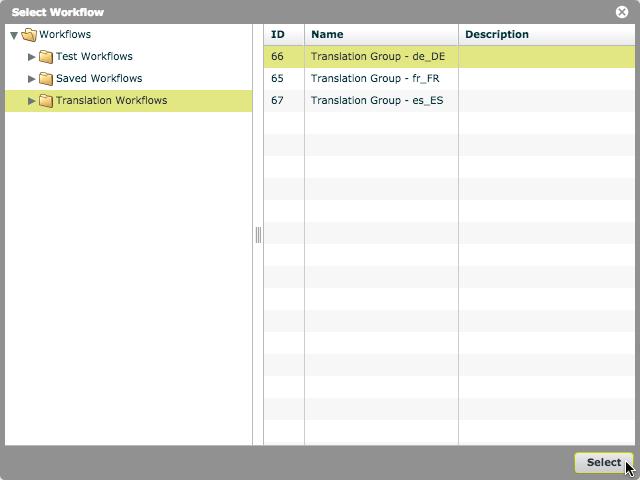
The 'Select Workflow' window opens.
Choose the workflow that you wish to assign to your version document.
NOTE:
The workflow must contain workflow tracks with the same names as the content groups in the project. If the names are different, or if a group is missing, then the workflow cannot be assigned to the version document.
Workflow assigned from Template
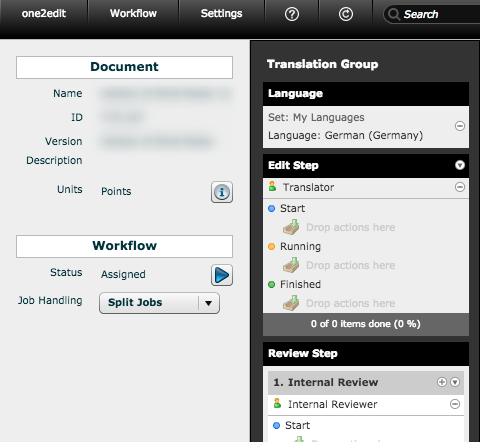
The workflow appears on the screen.
At this time, you may edit the workflow to tailor it to this specific job, or simply use it 'as is'.
Start the Workflow
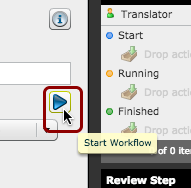
Click on the 'Start Workflow' button to start the workflow.
NOTE:
If a 'Workflow starter' variable user has been assigned to any workflow steps, that variable will be replaced by your username as soon as you click the 'Start Workflow' button.
Close the Workflow view
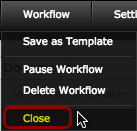
Click 'Workflow > Close' to close the workflow view.