
Starting a template is as easy as clicking a 'Start' button.
When a template is started, the view will jump to the 'Jobs' tab. This is because the system assumes that users start templates for their own jobs. If you are not a part of the workflow, then nothing will appear in your 'Jobs' queue. However, you can be assured that a job has appeared for the workflow user(s).
Click 'Templates' tab
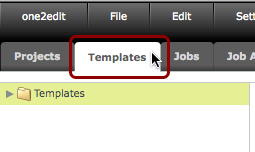
Switch to the 'Templates' tab in the main one2edit™ window.
Click 'Start'
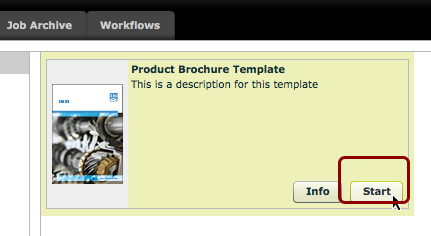
To start a template, click the 'Start' button for that template.
'Jobs' Tab
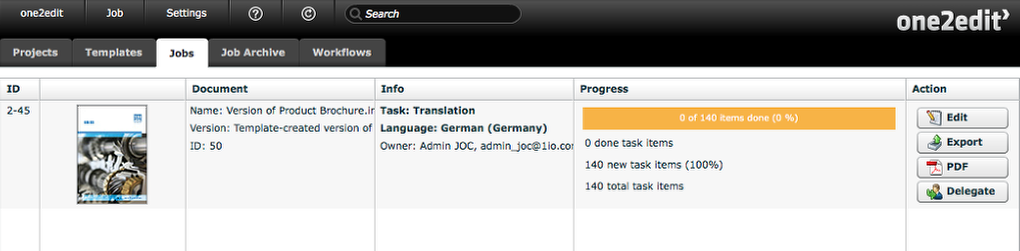
The view will, at this point, jump to the 'Jobs' tab.
NOTE:
The job will, obviously, only be displayed in your 'Jobs' tab if you are one of the workflow step users.
Version Document Created
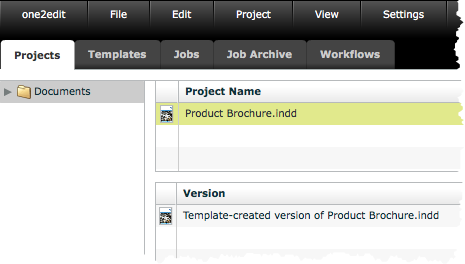
Under the 'Projects' tab, there will be a version document that was created by starting the template.
This version document's filename will be equivalent to the 'Default Version' value given when creating the template.
NOTE:
If the template was set up to create a duplicate document instead of a version document, then a new master document will have appeared in the folder defined by the template.