
This section describes the 'Templates' tab
NOTE:
Please note that this section only describes the menu options at a high-level. For more in-depth explanations, please refer to the appropriate parts of the manual.
Tab: 'Templates' - first view

This is the 'Templates' tab. By default, there is a folder called 'Templates' that you can use.
What is a 'Template'?
Templates are a method for starting a job 'on demand' in one2edit™. Users can have access to a template (and, therefore, the ability to start a job) without requiring access to the underlying documents or projects. Starting a template will create a version document and assign a pre-defined workflow to that version document.
Tab: 'Templates'
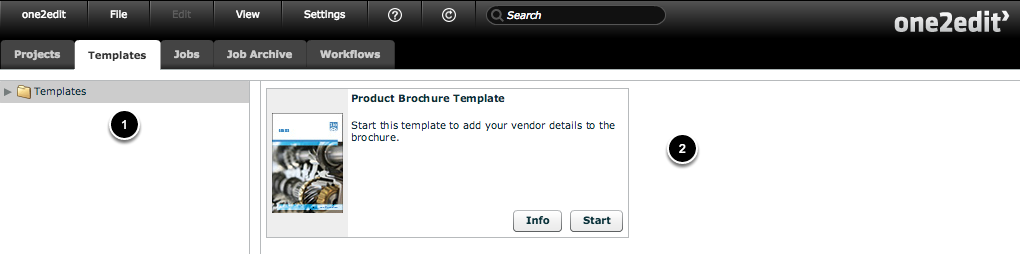
The 'Templates' view has a 'Folder Structure' (1) and a 'Template Selection' area (2). Selecting a folder will reveal the templates therein.
A job can be started by clicking the 'Start' button on a template, and information about the template can be seen by clicking the 'Info' button.
Double-clicking a template opens that template for editing.
Template 'Info' button > 'Template' window - 'Info' tab
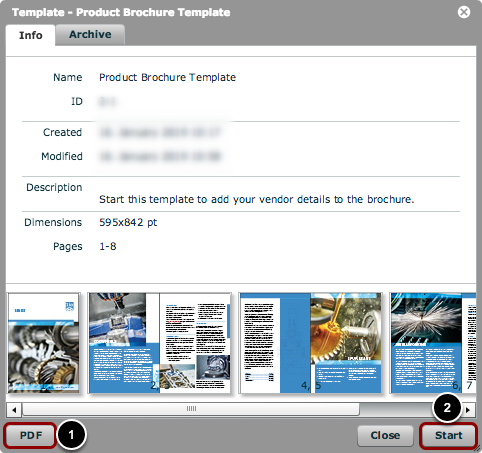
Here you can see the template info. The 'Info' tab gives you information about the:
- name of the template
- ID of the template
- the creation date
- the date of the last modification
- a description
- the document dimensions
You can also see thumbnail icons of the linked document.
From here, you can export the template as a low-resolution PDF (1) or start this job (2).
Template 'Info' button > 'Template' window - 'Archive' tab
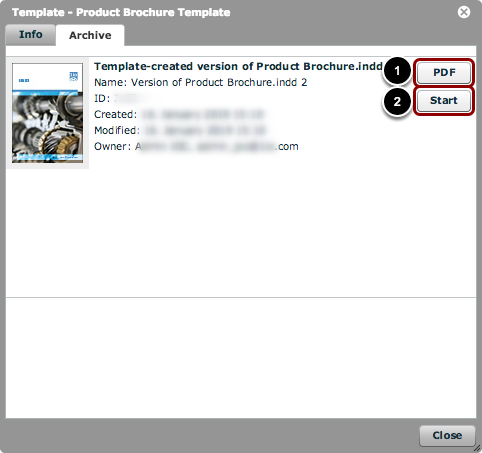
The 'Archive' tab contains the user's finished jobs. This list is identical with that found under the 'Job Archive' tab.
From here, you can export the finished document as a low-resolution PDF (1) or use this finished version as a starting point for a new job (2).
NOTE:
This view only displays finished jobs for which your username was in a part of the workflow, i.e., editing or reviewing. It does not display all finished jobs for this template.
Edit / Create Template > 'New Template' / 'Template Details' window - 'Properties' tab
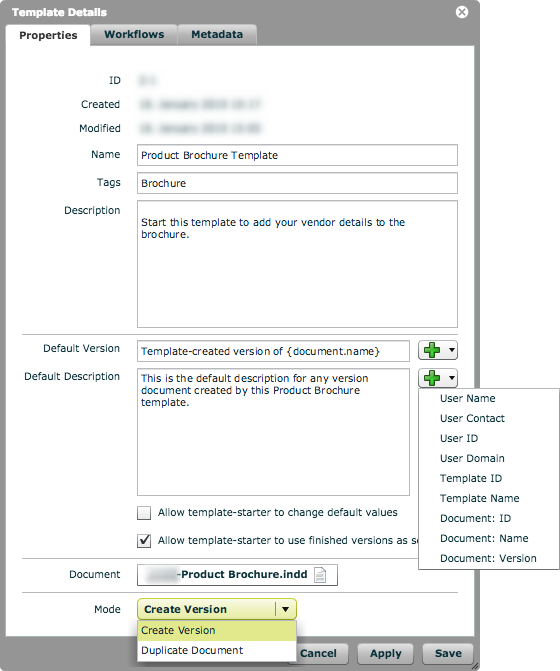
Double-clicking a template's thumbnail will open the 'Template Details' window. This window has three tabs: 'Properties', 'Workflows', and 'Metadata'.
Within the 'Properties' tab, there are the following fields:
- ID: The one2edit™ ID of the template.
- Created: When the template was created.
- Modified: When the template was last modified.
- Name: The display name of the template.
- Tags: The search tags for the template, which can be searched for in the 'Search' bar at the top of the window.
- Description: The description displayed for the template.
- Default Version: The default name of any document created using this template. If this is left blank, then the version name will also be blank.
- Default Description: The default description that will be assigned to any document created using this template.
- Allow template-starter to change default values: Permit the user who clicks 'start' for this template to change the default version and description.
- Allow template-starter to use finished versions as source: Permit the user who clicks 'start' to use one of their previously-completed jobs from this template as the basis for their new job.
- Document: Click here to choose the master document for your template.
- Mode: 'Create Version' will create a version document in whatever project is chosen under 'Document' and assign a workflow to it. 'Duplicate Document' will create a new master document in a chosen folder and assign a workflow to it.
NOTE:
This same window appears when making a new template. In that case, the window is named 'New Template'.
NOTE:
There are variable values permitted in both the 'Default Version' and 'Default Description' fields:
- User Name: The name of the user who starts a job from this template.
- User Contact: The email address of the user who starts a job from this template.
- User ID: The ID of the user who starts a job from this template.
- User Domain: The login domain of the user who starts a job from this template.
- Template ID: The ID of this template.
- Template Name: The name of this template.
- Document ID: The ID of the document referenced by the template.
- Document Name: The name of the document referenced by the template.
- Document Version: The version text of the document referenced by the template.
Edit Template > 'Template Details' window > 'Workflows' tab
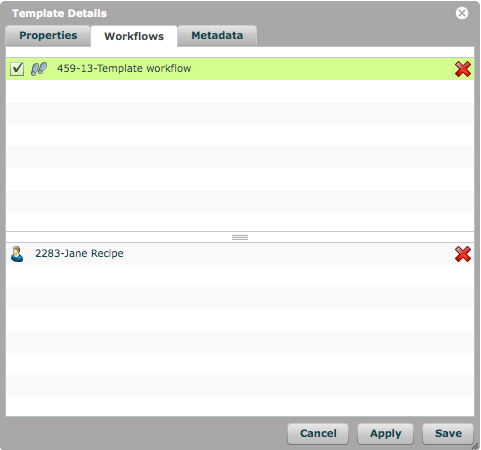
You can drag and drop workflows into the 'Workflow' tab.
Selecting a workflow allows you to choose the users for whom the selected workflow will automatically start. These users (or user groups) can be dragged in from the 'Users & Groups' window.
Edit / Create Template > 'New Template' / 'Template Details' window > 'Metadata' tab
The 'Metadata' tab allows you to add XML metadata to a document. This metadata can then be seen and used via API calls, e.g., when integrating with another system.