
The segments that are being linked to Excel cells are not always next to one another in the document structure. This will hamper the user's ability to quickly link segments to cells using the 'Tag Next Item' button 'Counter' fields.
Placing the segments into a Content Group allows you to filter out all non-linking segments from the linking process.
Table contains non-Data-Source content
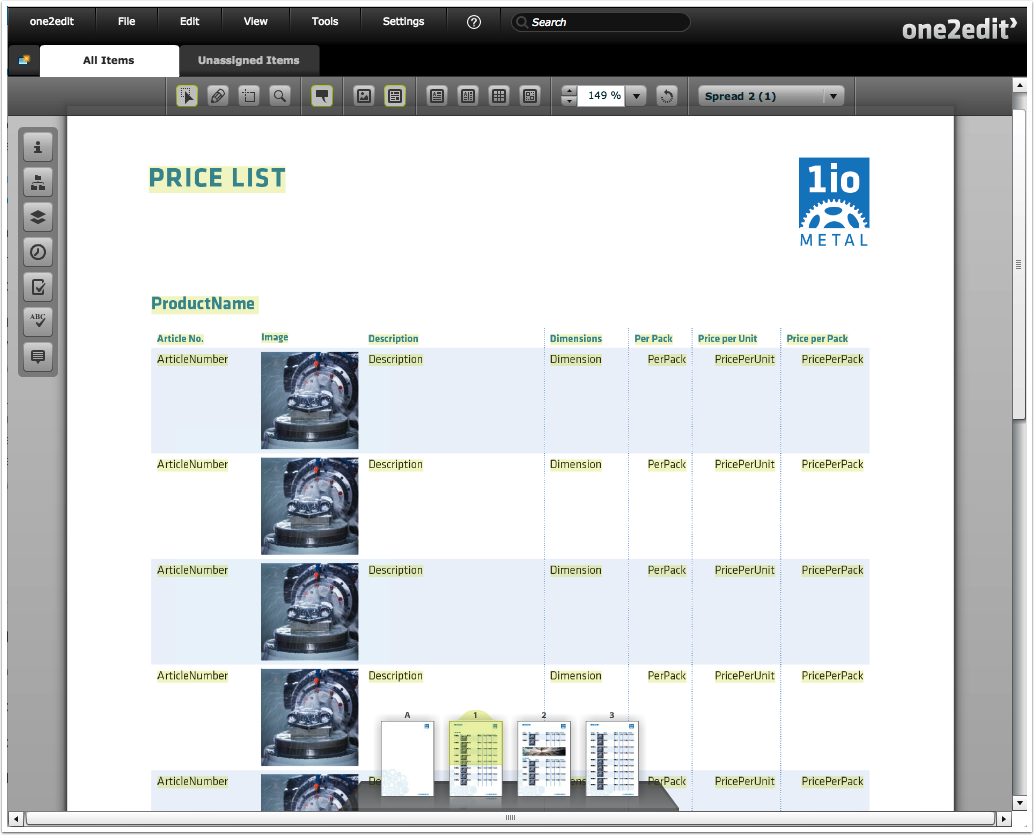
In the table above, one of the columns contains images. However, there are no images in the price-list Excel file that will be linked to this table.
For this reason, we would like to skip the 'Image' column when using the 'Tag Next Item' button in the 'Data Sources' panel.
The easiest way to filter out the column is to use a Content Group.
Create Content Group and link segments
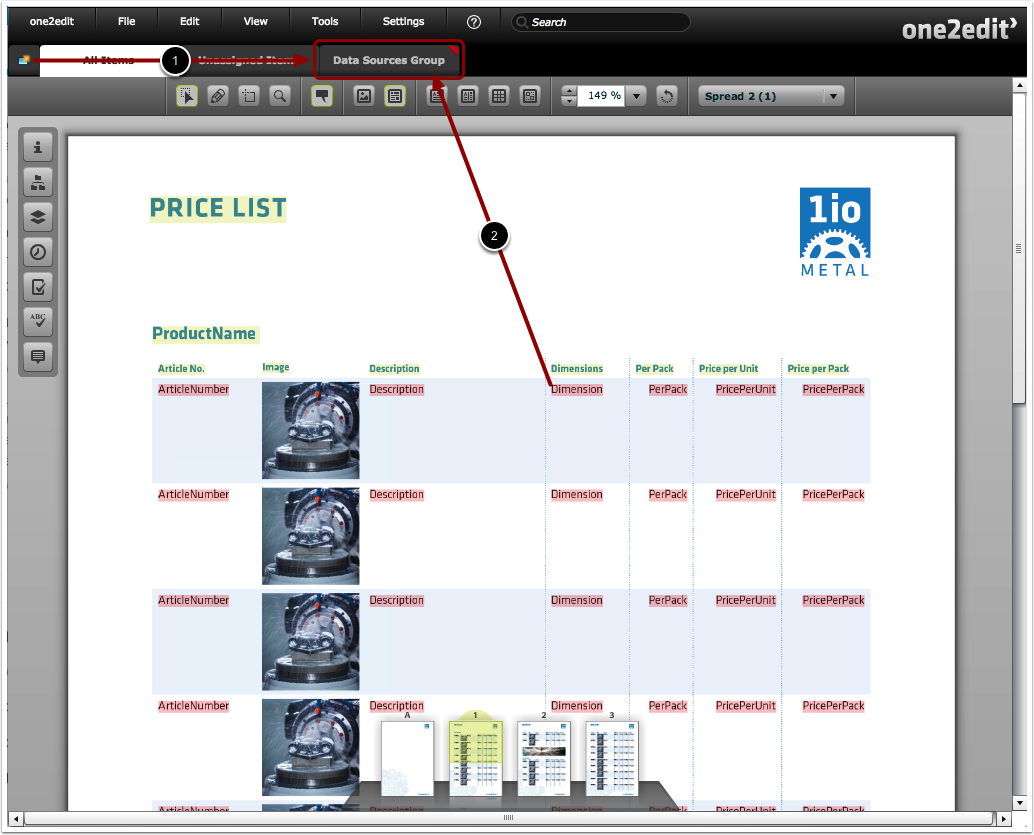
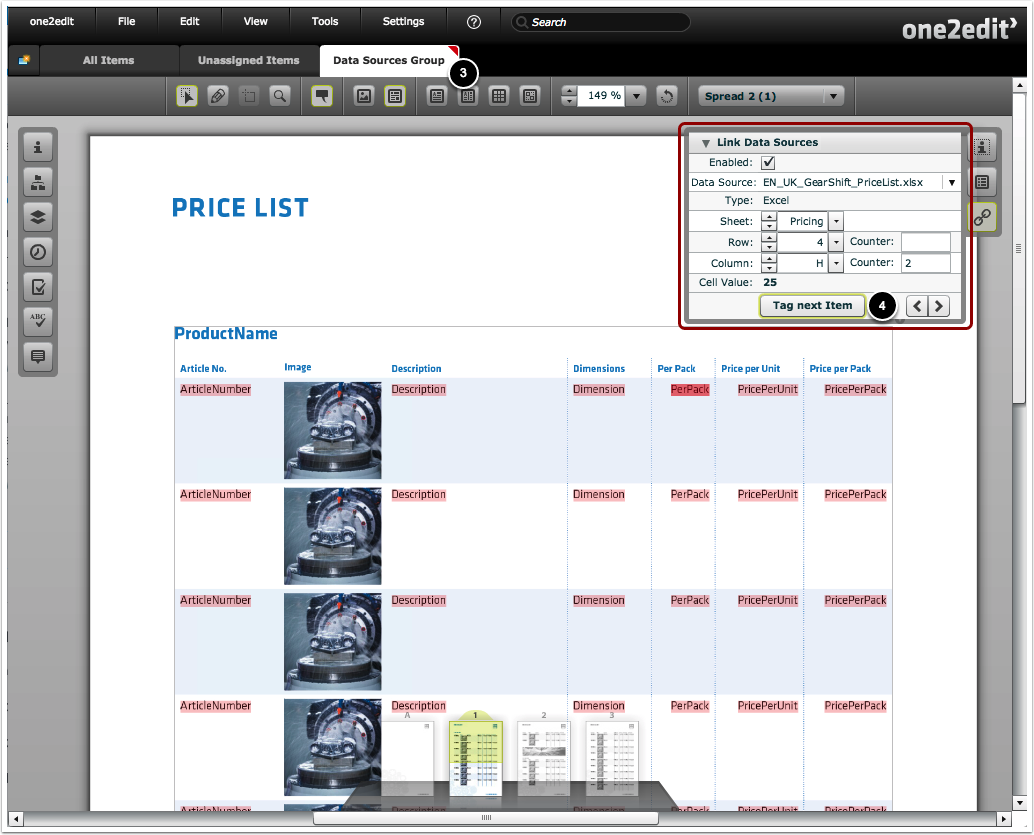
- Create a Content Group.
- Move the segments you wish to link into that Content Group.
- Select the Content Group to filter in only the content of that group.
- Set up the Data Sources panel with any counters, and use the 'Tag Next Item' button to tag segments more efficiently.