
Once you have updated your document using Adobe® InDesign®, you now need to check it back into the system. This will allow one2edit™ to robustly roll out to the version documents any changes that you have made in this project.
This workshop covers checking a document back in to one2edit™, which will allow us to perform a diff.
Step 1: Check In Document
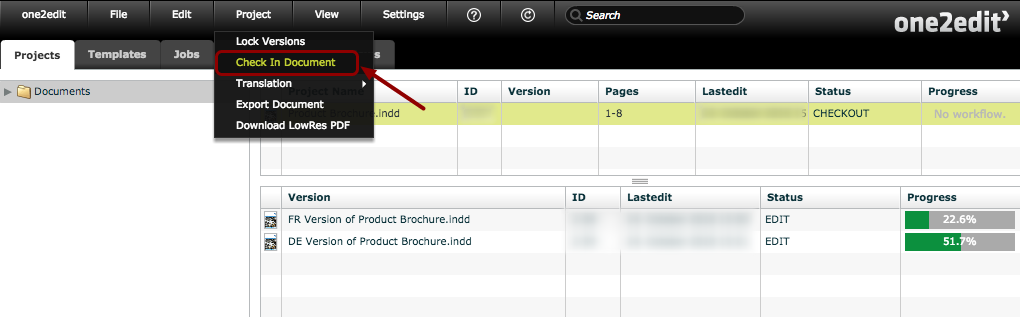
Select the checked-out master document in one2edit™ and click 'Project > Check In Document' to start the check-in process.
Step 2: Start Check-In Process
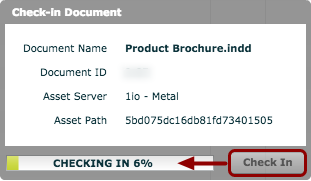
The 'Check-in Document' window will open.
Click 'Check In' to start the check-in process and display a progress bar.
Step 3: Status changes to 'DIFF'
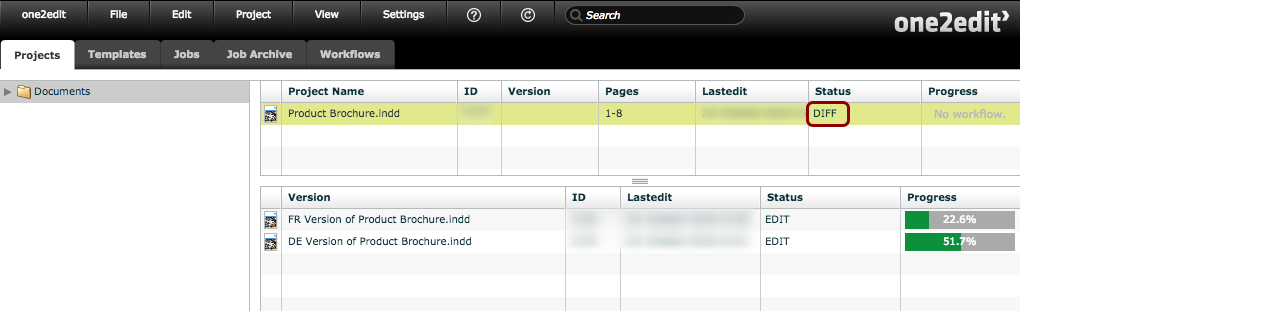
The master document status will be updated from 'CHECKOUT' to 'DIFF'.
This means that the check-in was successful and you can now perform a Diff to manage and roll out the changes you've made to your document.
NOTE:
Until the Diff process has been completed, no changes will be applied to the master document. This means that any new version documents will still be created from the original (old) master document, even though the new and updated master document has been checked in.
Congratulations!
You have successfully checked your updated document back in to one2edit™.
The final workshop will walk you through how to apply your changes to the master document (and version documents) using the Diff Wizard.