
Open the 'Set Translation Memory' window for the Language Set
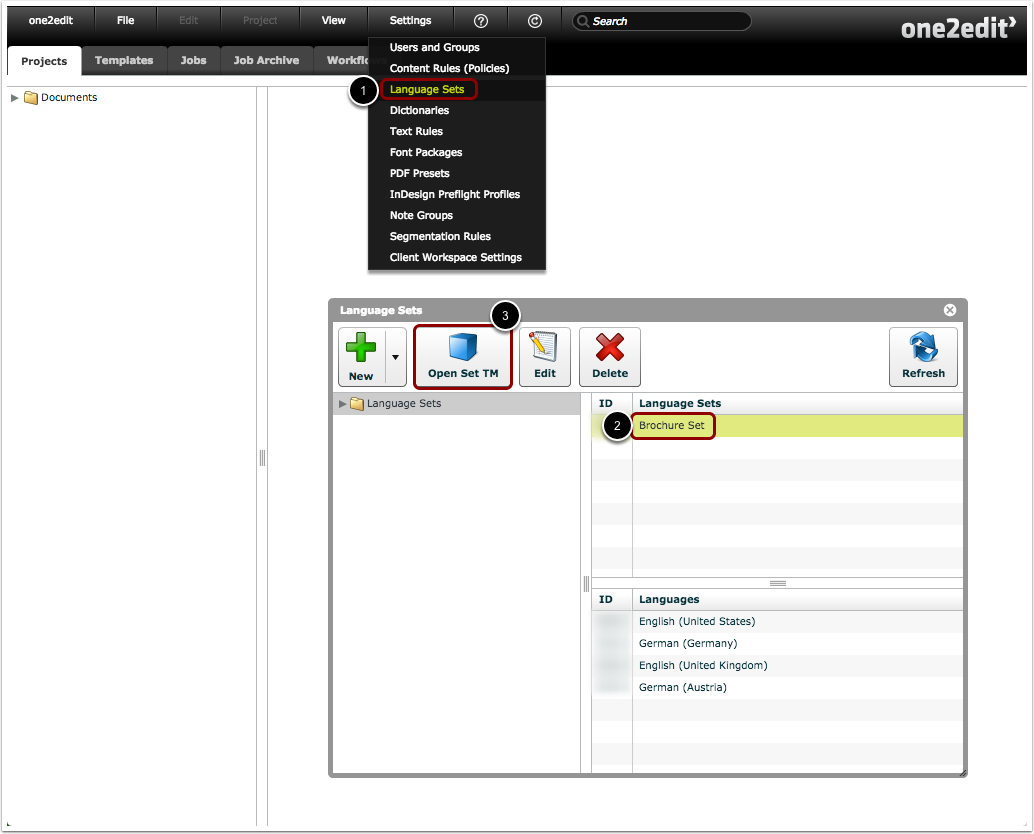
- Click 'Settings > Language Sets'.
- Select the Language Set from which you want to export the Translation Memory.
- Click the 'Open Set TM' button.
Click 'Export'
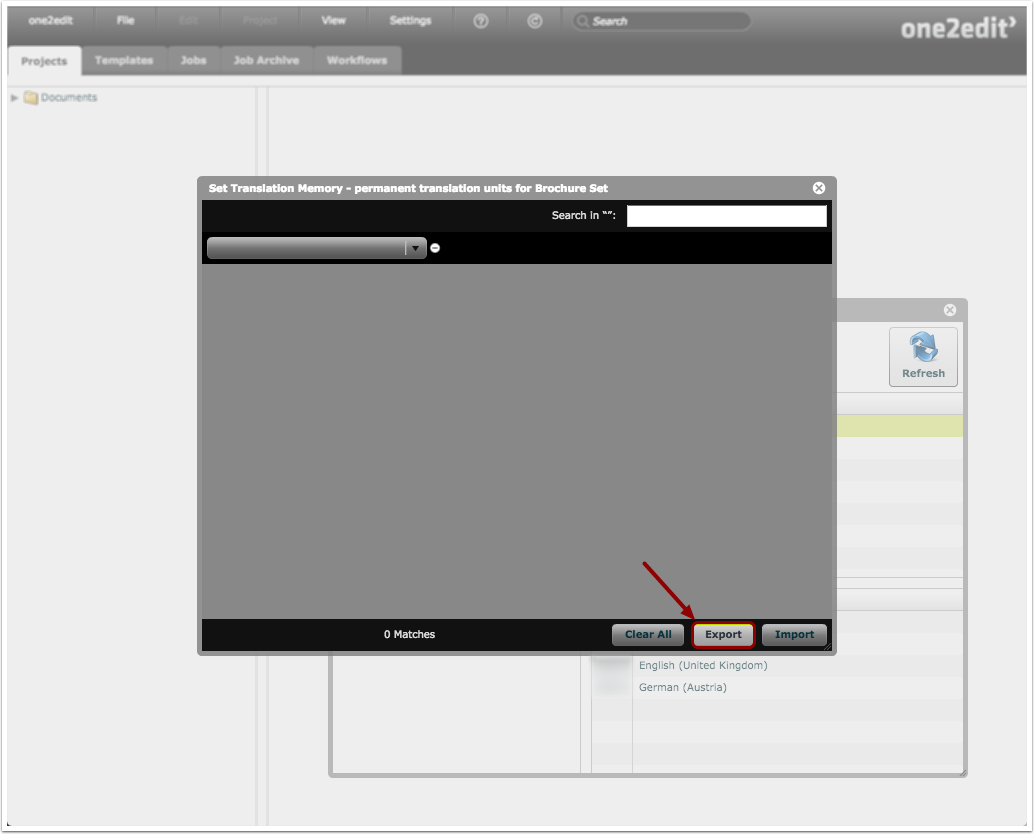
Click the 'Export' button.
NOTE:
There is no requirement to select any languages in the drop-down menus if you wish to simply export everything from the TM.
Select options & click 'Export'
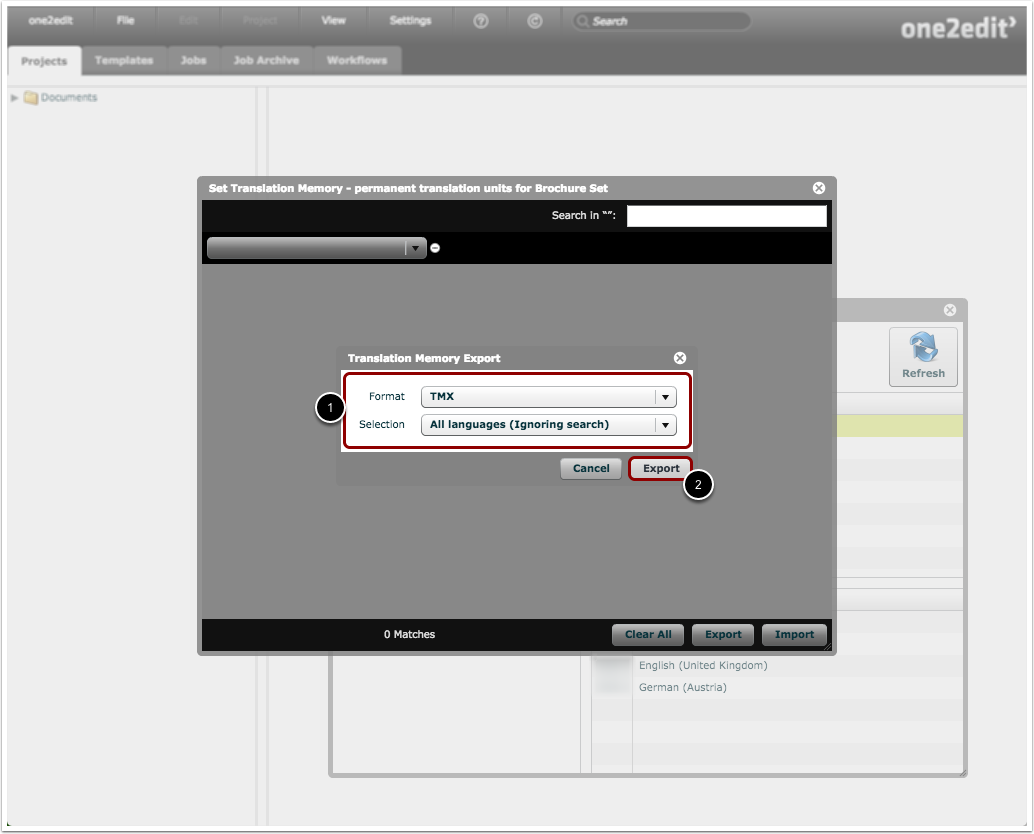
- Select the options that you wish to export. The default is 'All languages', which will simply export everything in the TM database.
- Click 'Export'.
NOTE:
If you wish, you can use the 'Selection' drop-down menu to export only languages specifically chosen in the drop-down menus, or only results that match a specific search result, etc.
Wait for the TMX file to be exported

While the TMX file is being exported, a progress bar is shown, and the 'Export' button is grayed out.
Click 'Start Download'
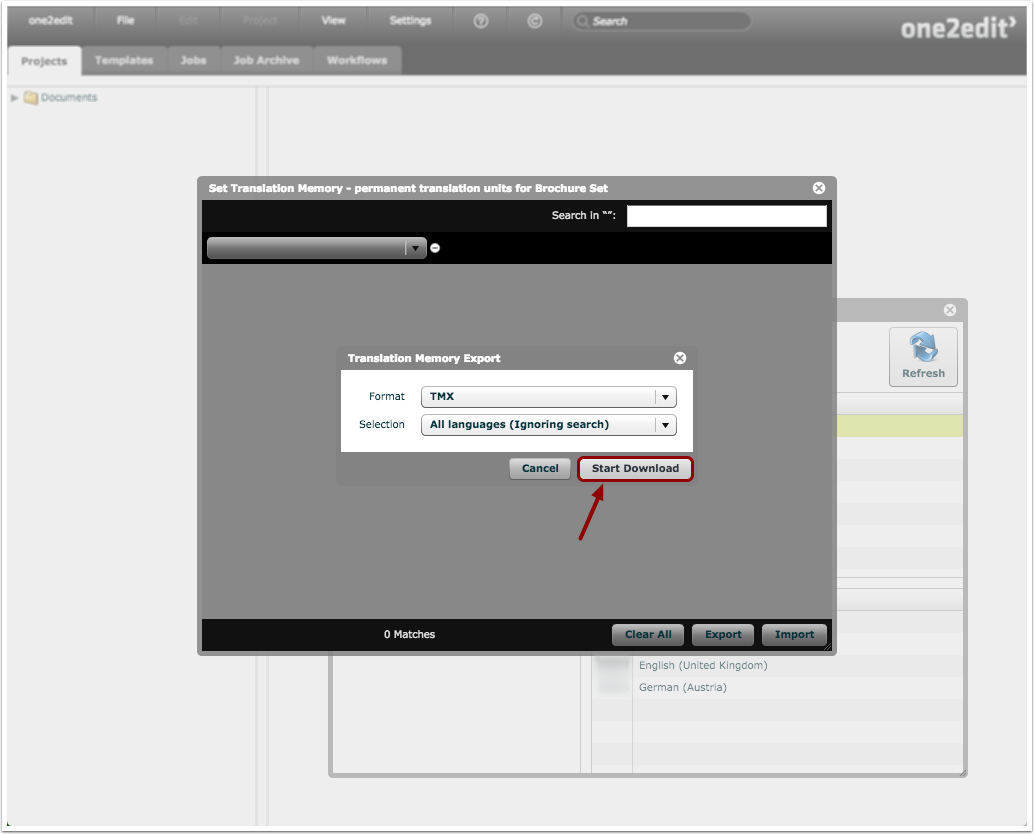
Click the 'Start Download' button that appears when the TMX file has been successfully exported.
This allows you to save the TMX file to your hard drive.