
This section shows you how to 'Save & Close' a master document.
The following content is an excerpt of a workshop. To see this lesson in context, please refer to "Workshop 1: How to create a Translation Job Project and work with 'Translation' Content Groups (Steps 21ff.)".
NOTE:
A detailed description of any window used here can be found in the 'User Interface Description' sections.
Let's get started!
Save & Close

When you have finished setting up your content groups and assigning your content rules, click 'File > Save & Close'. If you just click 'File > Close', one2edit™ will prompt you to save your changes.
WHAT IF, you accidentally closed one2edit™?
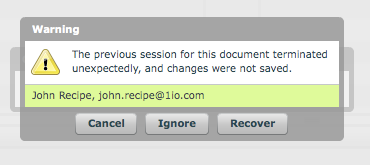
If you leave one2edit™ accidentally without saving your work (e.g. a browser crash, an internet interruption, etc.), your latest changes will be saved by default. At your next login, you will be prompted to recover your changes.