
This section shows you how to 'Save' and 'Close' a workflow.
The following content is an excerpt of a workshop. To see this lesson in context, please refer to "Workshop 2: How to create a Translation Job Workflow (Steps 13; 16-17)".
NOTE:
A detailed description of any window used here can be found in the 'User Interface Description' sections.
Let's get started!
'Save as Template'
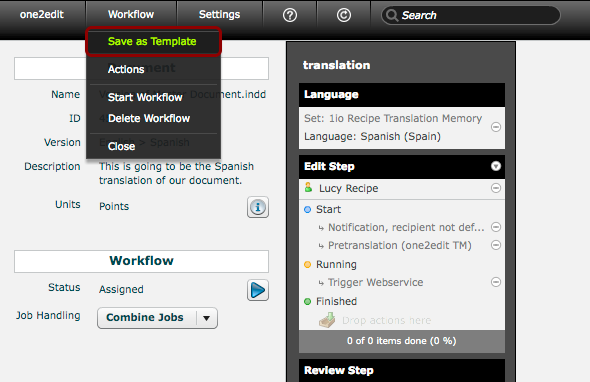
Re-using workflows can help with general workflow efficiency because you do not need to set them up from scratch every time. Therefore, if this workflow can be re-used, you should consider saving it as a 'Workflow Template' by clicking on 'Workflow > Save as Template'. This workflow will then be accessible via the 'Workflows' tab in the main one2edit™ view.
NOTE:
A 'variable user' (e.g. 'Workflow Starter') will only remain in its variable form until the workflow is started. As soon as the workflow starts, the 'variable user' is replaced by a proper user. For this reason, if you are using 'variable users' in you workflow, it is very important to save your workflow before you start it.
Close workflow
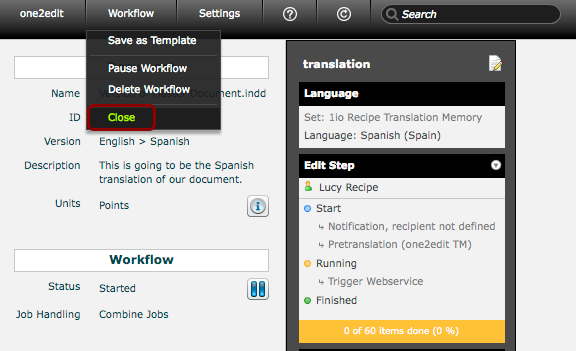
When you have completed your workflow, you can return to the main 'Projects' tab by clicking on 'Workflow > Close'.
NOTE:
Workflows are being saved automatically as you build them. There is no need to explicitly save your work at any point (unless you are saving a template for future use).
Workflow progress
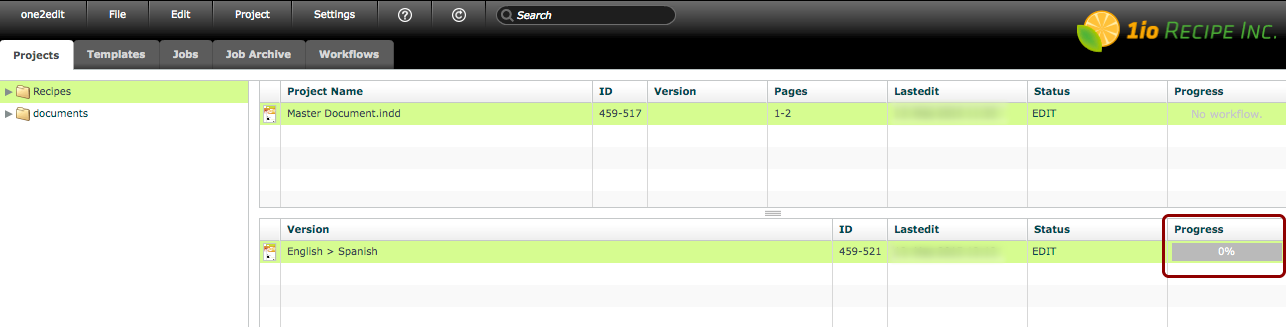
Closing the 'Workflow' window returns you to the 'Projects' tab. You can easily follow the job progress via the 'Progress' bar in the version document window.