
This section shows you how to 'Save & Close' a master document.
The following content is an excerpt of our workshop. To see this lesson in context, please refer to "Workshop 1: How to create an Edit Job Project and work with 'Edit' Content Groups (Steps 18ff.)".
NOTE:
A detailed description of any window used here can be found in the 'User Interface Description' sections.
Let's get started!
Remember to 'Save' before 'Close'

When you have finished working with the 'Job Editor', you should save your changes.
Go to 'File > Save' if you want to continue editing or go to 'File > Save & Close' if you want to leave the 'Job Editor'.
If you just click 'File > Close', one2edit™ will prompt you to save your changes.
WHAT IF, you accidentally left one2edit™?
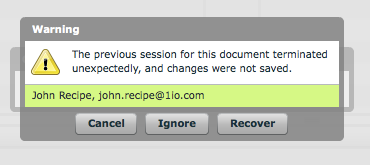
If you leave one2edit™ accidentally without saving your work (e.g. a browser crash, an internet interruption, etc.), your latest changes will be saved by default. At your next login, you will be prompted to recover your changes.