
This section talks about the Workflow window
The following content is an excerpt of our workshop. To see this lesson in context, please refer to "Workshop 2: How to create an Edit Job Workflow (Steps 3-4)".
NOTE:
A detailed description of any window used here can be found in the 'User Interface Description' sections.
Let's get started!
Open 'Workflow' window
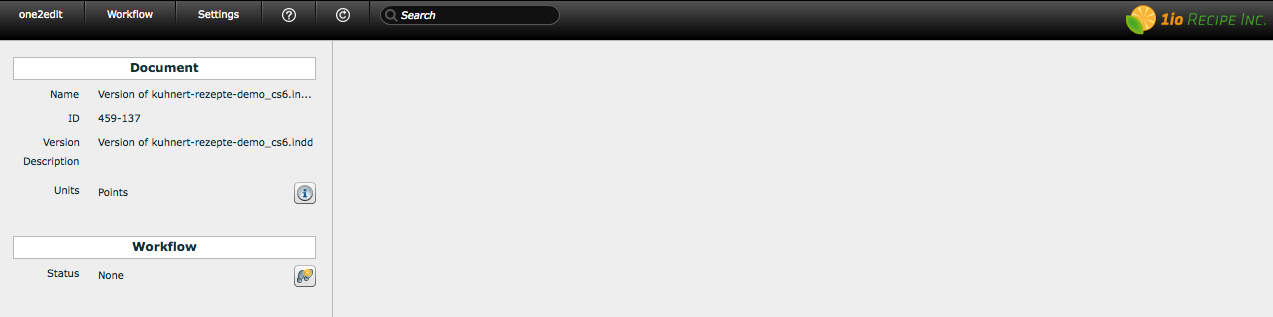
Double-click on a version document to open the 'Workflow' window for that document.
Adapt 'Document' area
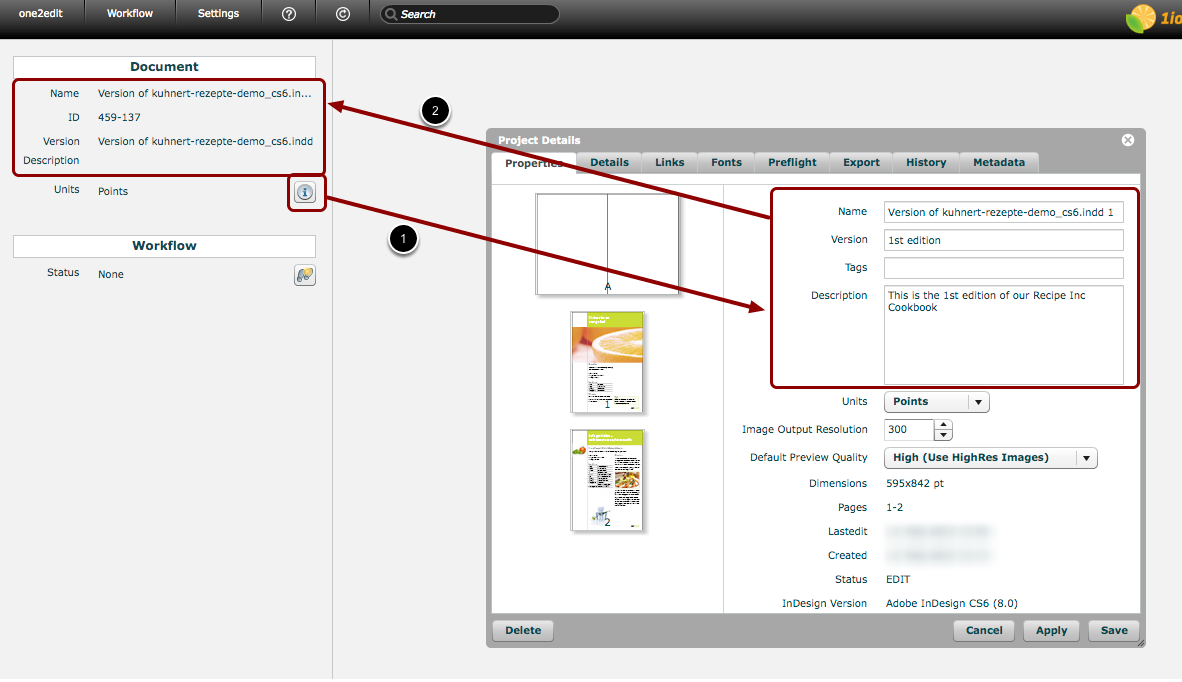
If you have not filled in any details for your version document while in the 'Projects' tab, you can do so here in the 'Workflow' window.
- Click on the 'i' icon to bring up the 'Project Details' window for your document. Update the document details within the Project Details window and click 'Save'.
- The updated information will be displayed on the right side in your 'Workflow' window.