
This section shows you how to create a new project from an InDesign® document.
The following content is an excerpt of a workshop. To see this lesson in context, please refer to "Workshop 1: How to create an Edit Job Project and work with 'Edit' Content Groups (Steps 1-5)".
NOTE:
A detailed description of any window used here can be found in the 'User Interface Description' sections.
Let's get started!
Open the 'Asset Browser'
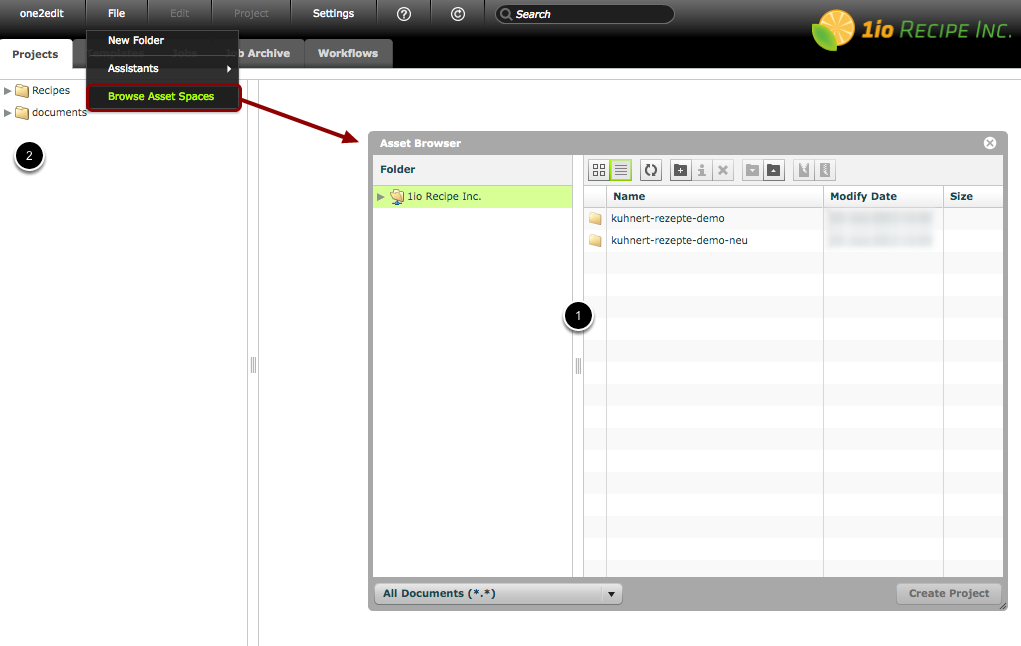
To create a new project, open the 'Asset Browser' window by clicking 'File > Browse Asset Spaces'.
- 'Asset Browser' window: Your asset project is where you store your uploaded data. It is comparable to the hard drive on your computer, where you can create a folder structure and manage your data. The 'Asset Browser' gives you access to this asset project via a web browser.
- 'Projects' tab: The one2edit™ 'Projects' tab is where you can organize your project folder structure as well as the projects themselves. It remains active while the 'Asset Browser' window is open, allowing you to easily switch back and forth, if required. This also allows you to choose the target project folder for your new project.
NOTE:
To summarise, we handle data within the 'Asset Browser', and one2edit™ projects within the 'Projects' tab.
Create a new project
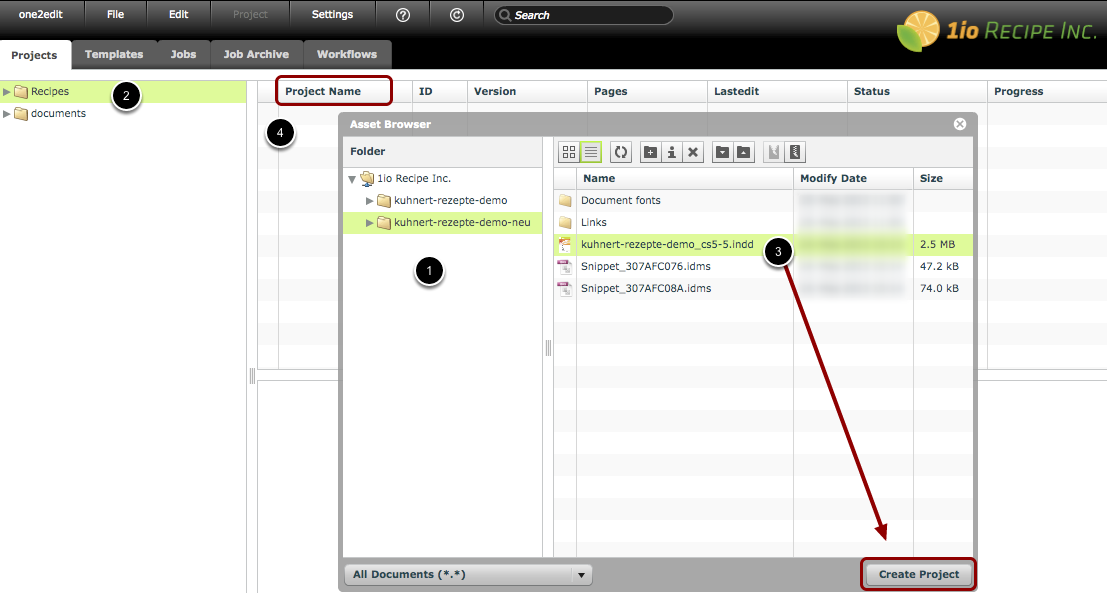
We will now create our new one2edit™ project.
- 'Asset Project Folder' structure: In the 'Asset Browser', you can see your company's asset project. This asset project should contain all project-related data within subfolders. If not, you can upload data using the 'Asset Browser' controls.
- Choose or create a target project folder: You need to choose a target folder in which to create your project. Don't worry if you have forgotten to create a suitable folder beforehand. As mentioned above, you can still create project folders or edit them while the 'Asset Browser' is open. Just click on the 'Projects' tab, edit your folder structure, and then click back into the 'Asset Browser'.
- Choose the InDesign® document that you will use for your project: Select your Adobe® InDesign® document in the 'Asset Browser'. Click 'Create Project'. The 'Asset Browser' will automatically close when the project has been successfully created.
- The project's new home: The newly created project will now be listed in the 'Project Name' column within the 'Projects' tab.
NOTE:
The 'Create Project' button will only be available if you have selected a target folder (2) in the one2edit™ 'Projects' tab.
Example for 1io Recipe Inc.:
(1) The asset project is named after our company, 1io Recipe Inc. This contains two subfolders with all of the relevant data for our project (i.e. the InDesign® package contents). (2) Because our project will be about recipes, we created a folder with that name in our one2edit™ 'Projects' tab and selected it. (3) We then selected the correct InDesign document in a subfolder. (4) The 'Create Project' button is now active, so we click on it. Our new one2edit™ project, named 'kuhnert-rezepte-demo_cs5-5.indd', will then be listed in the 'Project Name' column.
Open 'Project Details' window
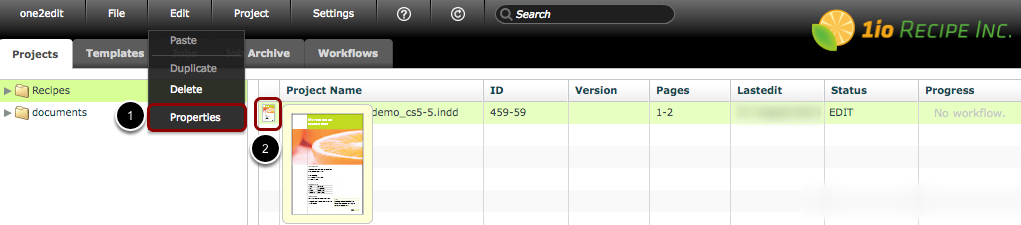
You should open the 'Project Details' window. You can do this in one of two ways:
- via the 'Menu': Select your master document and then click 'Edit > Properties'.
- via the 'Document Thumbnail': Click on the thumbnail next to your chosen document.
Update 'Project Details'
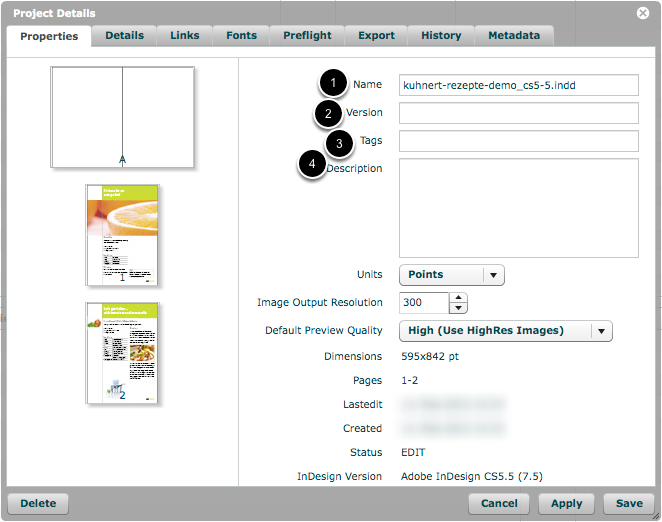
When the 'Project Details' window opens, the 'Properties' tab is shown. Within this tab the following fields can be adapted:
- You can update the 'Name' of the master document (i.e. the name of the project).
- You can add 'Version' text that will appear in the 'Version' column.
- It is also possible to add 'Tags' to this project. These are search tags, and can be searched for via the 'Search' field at the top of the screen.
- The 'Description' is a free-text field that can be seen in the 'Project Details' window or when viewing the document info via the API.
NOTE:
Text entered into the 'Version' field (2) will be used as the default version text for any version documents created using the 'Project > Create Version' menu command. If no text is entered, the version document text will be 'Version of <master document name>'.
Check 'Links' and 'Fonts'
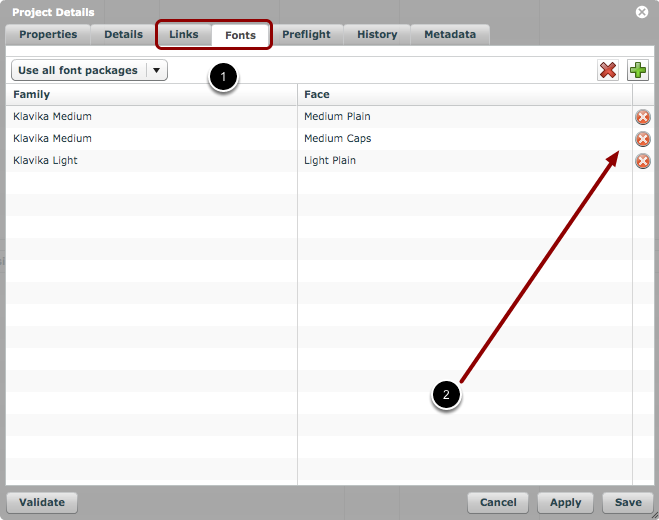
You should now check that ALL 'Links' and 'Fonts' (1) are valid for the documents in this project. If any of them are missing/oudated (or cannot be found), a red icon will appear in the right-hand column, as shown (2)*.
What happens when 'Links' are outdated?
Every Adobe® InDesign® file (INDD file format) has 'proxy images' embedded in it. These images are low-resolution versions of the source links/images.
If any links are outdated, one2edit™ will automatically use the low-resolution 'proxy' version instead of the real, high-resolution images. While this might not be obvious right away, it makes a huge difference when zooming in on an image (the image will become pixelated). More importantly, you won't be able to export a high-resolution document at the end of your work cycle if any links are still missing.
On the other hand, the IDML file format (i.e. not an INDD file) contains no low-resolution proxy images. If you create a one2edit™ project by using an IDML file, any missing links will simply show up as grey squares.
What happens when 'Fonts' are missing?
When fonts are missing, the document shown in the editor may look OK at first. However, any text changes will cause the text to be re-rendered. If the font for this rendered text cannot be found, it will default to a Mac OS X system font (if one can be found).
If any characters to be rendered are not available in the chosen font, or if the font that contains these characters is missing, the characters will instead be rendered as small squares (or some other glyph that denotes missing characters). This situation may occur when using, for example, Chinese characters with a Roman font.
NOTE:
If you have not uploaded your links and fonts so far, try to do this as soon as possible! You can then avoid such complications as those mentioned above*.
*For details on how to upload links and fonts, please refer to the appropriate lessons within the 'Getting started with one2edit™' section.