
This section shows you how to start a workflow.
The following content is an excerpt of our workshop. To see this lesson in context, please refer to "Workshop 2: How to create an Edit Job Workflow (Steps 13-14)".
NOTE:
A detailed description of any window used here can be found in the 'User Interface Description' sections.
Let's get started!
'Start Workflow'
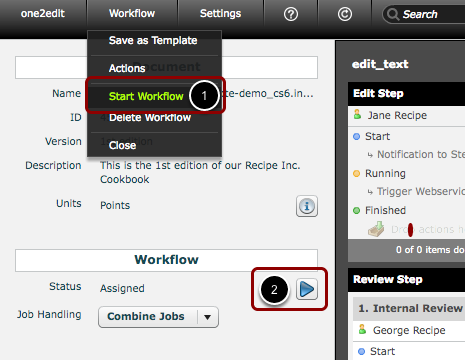
If you are satisfied with your workflow, you can start it by:
- Click 'Workflow > Start Workflow' or...
- Click the 'Play' button
Active Workflow tracks
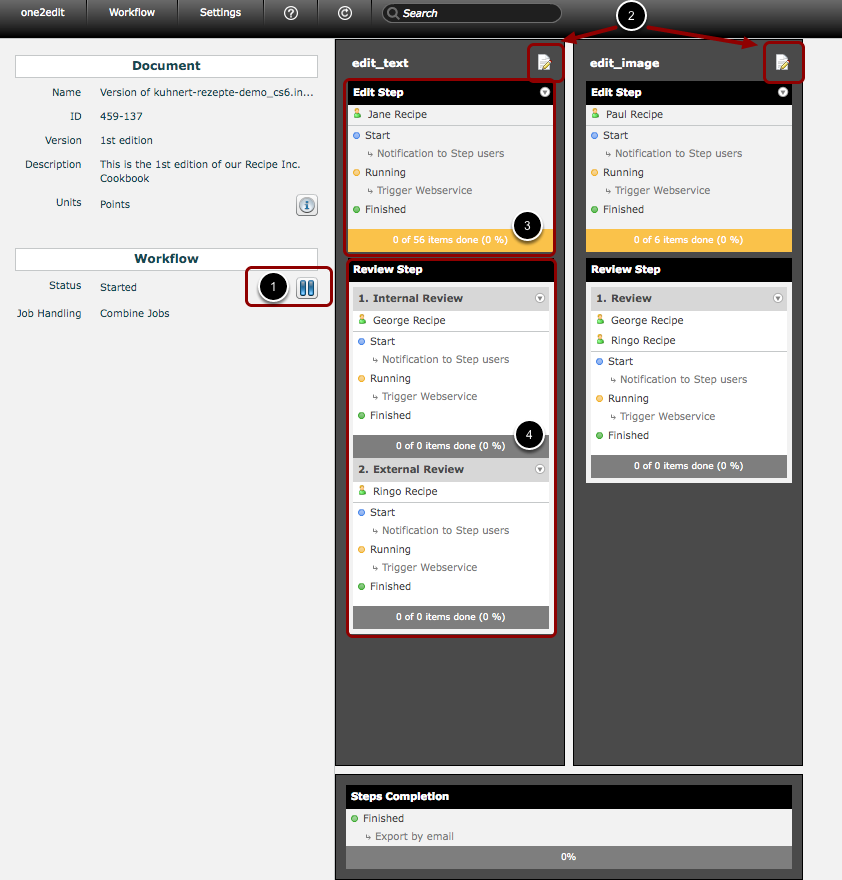
When a workflow is running, it will look like the above screenshot. Note that you cannot delete users or make changes while the workflow is running.
- 'Pause' button: The 'Play' button turns into a 'Pause' button when the workflow is started. It is possible to pause the workflow at any time in order to make changes, e.g., update users, actions, etc.
- Open 'Job Editor' as Admin: Clicking the notebook icon at the top of a workflow track will open the 'Job Editor' in 'Administrator' mode. In this mode, you can edit content and set the status of any piece of content to any of the workflow steps. Please note that you will still be constrained by any content and frame rules.
- Activated workflow step: You can see which workflow step(s) is currently active by the presence of orange in the step's 'Progress' bar. As content is marked as 'Done', the orange will start to fill up with green.
- Inactive workflow steps: Any workflow steps that do not yet contain content will be gray.