
In order to create a folder structure you are comfortable working with it might be necessary to delete outdated folders.
This lesson demonstrates how to delete a folder.
Select folder
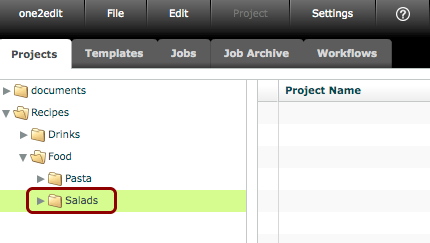
Select the folder you want to delete within one2edit™.
Delete folder
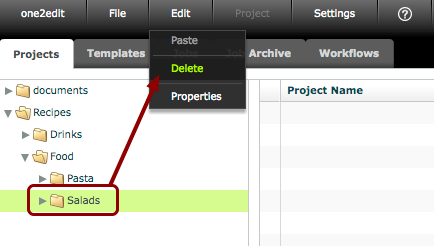
Click 'Edit > Delete'.
Question message
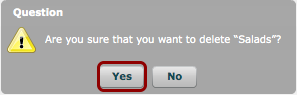
Confirm your decision to delete the selected folder.
Folder deleted
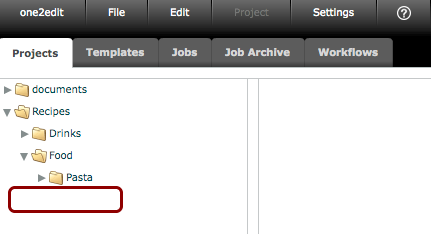
The folder has now been deleted. It is no longer available in your 'Projects' tab.
NOTE:
Deleted folders can not be restored.
Please note: Folder needs to be empty!
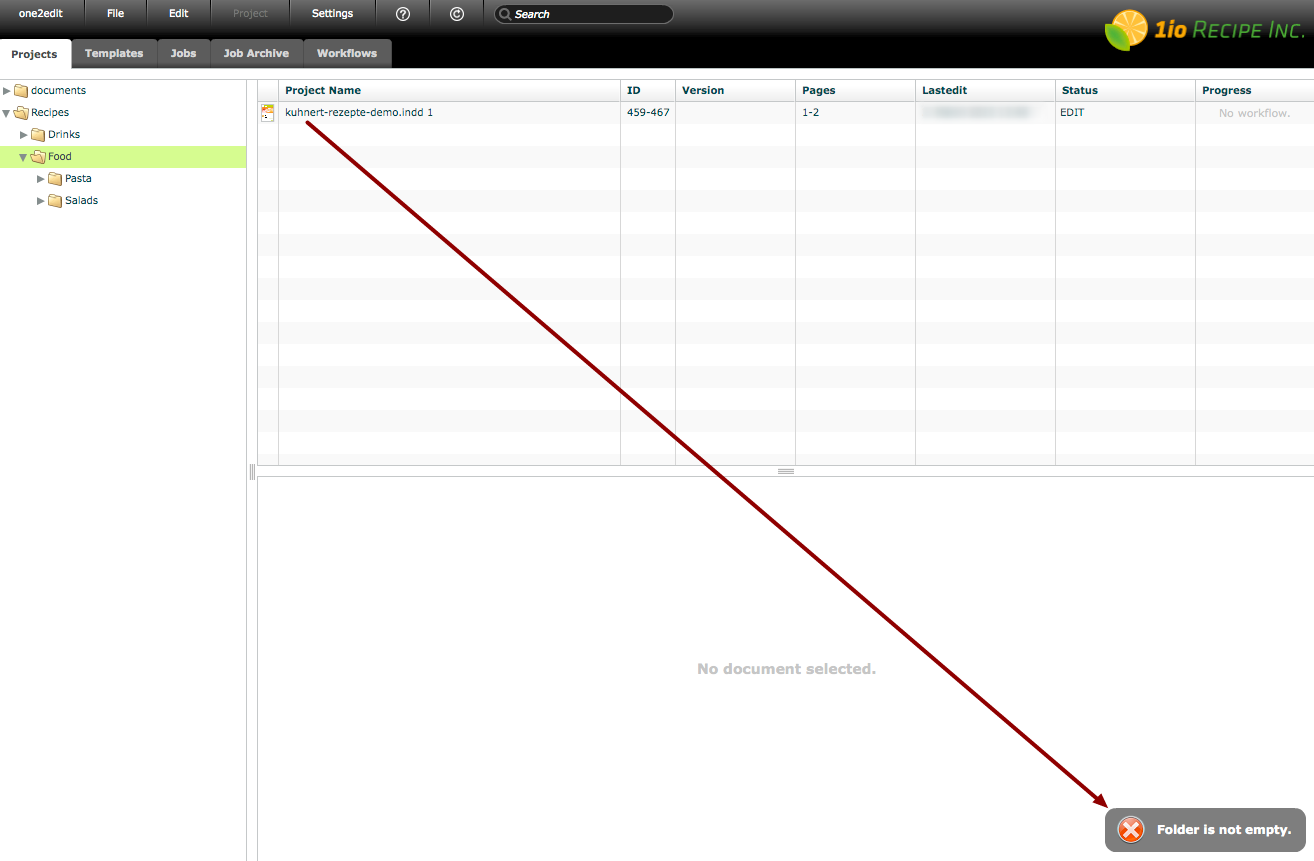
Only empty folders can be deleted!
If a folder is not empty, a 'Warning' message pops up in the lower right corner. The deletion process is cancelled.
This means:
- The folder must not contain any subfolders.
- The folder must not contain any projects.
NOTE:
Several projects can be selected and deleted at the same time, while subfolders need to be deleted individually.