
A version document can be converted into a standalone master document, if desired.
For example, if a non-English document needs to be translated into multiple language versions, it may be useful to first translate this non-English master document into English. The resulting English version document may then be duplicated and converted into an English master document, and used as the source document for further translation workflows.
This example is outlined in the lesson below, but can be used for any documents or languages.
Create a version document
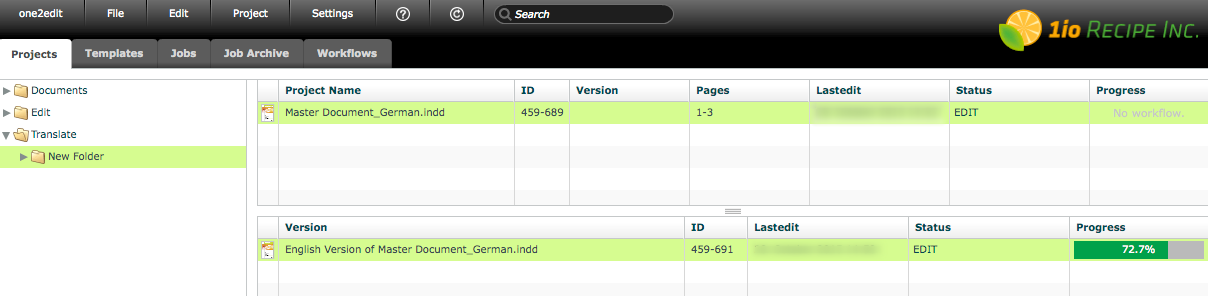
In this example, the master document is in German. However, we desire an English master document.
Therefore, we create a version document and translate this version into English.
Duplicate the version document
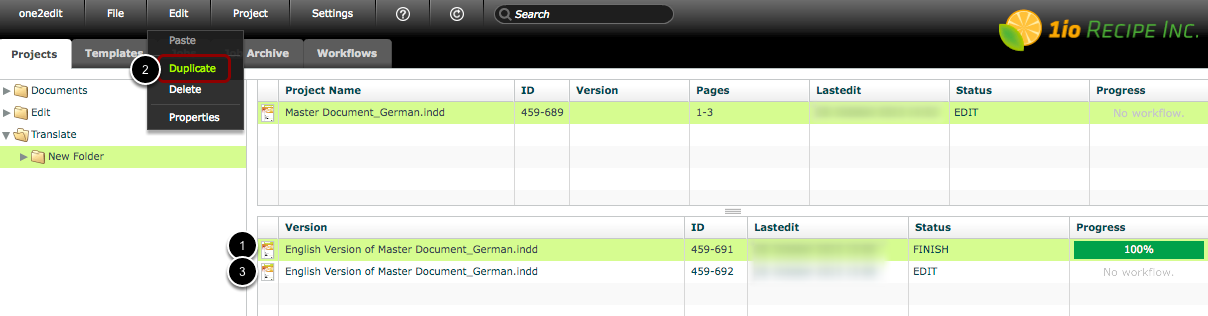
Once the translation workflow is 100% complete:
- Select the version document
- Click 'Edit > Duplicate'
- The duplicated version document (without a workflow) appears below the original version document
NOTE:
The reason for duplicating the version document is because a document that has been converted to a standalone master document cannot be reverted to a version document in the future. If you need the version document again in the future (e.g. for changes to the original master content) it is vital that you keep the completed version document and workflow in this original project.
Convert the version document to a master document
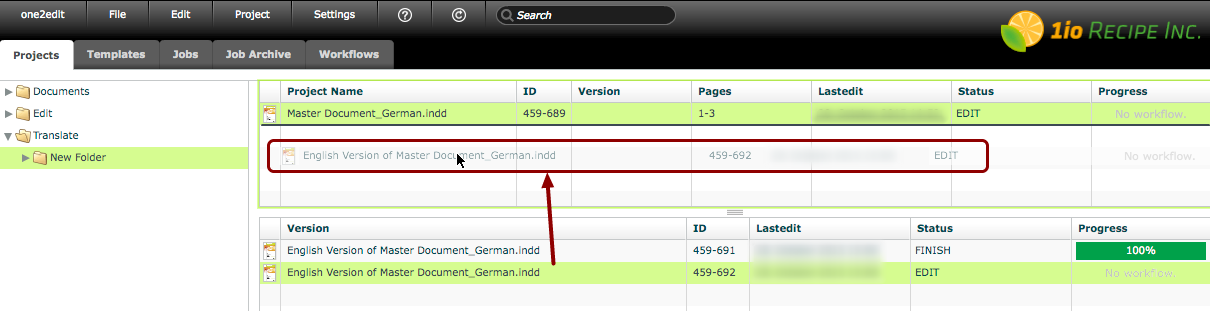
Drag the duplicate version document (i.e. the one without a workflow) and drop it into the master document area, as shown.
"Convert to standalone document?"
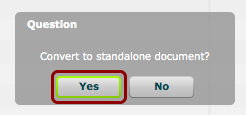
Click 'Yes' to convert the version document into a master document.
Update the name as required
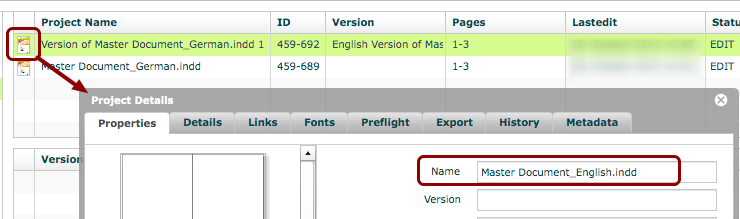
The converted document will still carry the name of the version document.
You can open the 'Project Details' window (via the thumbnail or 'Edit > Properties') and update the name to something more meaningful, if required.
Change the source language in content group
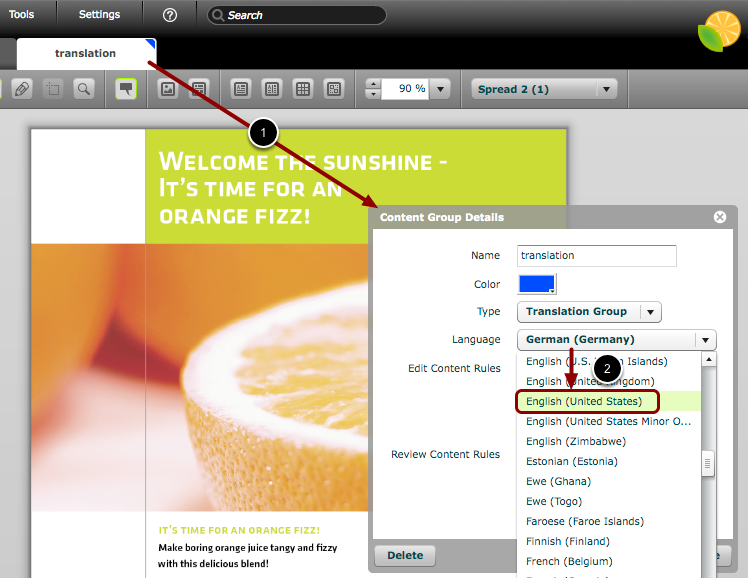
The converted document will contain the same content group as the original master document (i.e. the German master). Therefore, the source language setting in the content group needs to be updated to the new source language.
- Open the 'Content Group Details' window (double-click on the content group tab)
- Update the source language.
Example:
We created an English version document from a German master document. Therefore, the source language in the content group window is still defined as German, while the source language of the converted document now needs to be English.
Versions created from converted document
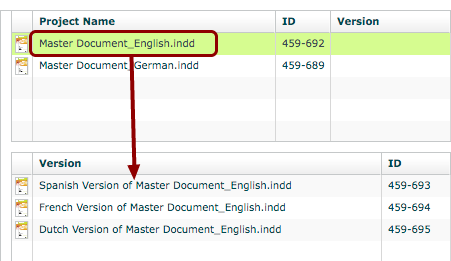
Create new version(s) of the English master document for translation using your preferred methods.