
If a document contains repeated job segments throughout, the workload can be eased by using the one2edit™ Temporary Translation Memory.
This lesson shows the translation becoming available within the current job. However, the temporary translations will be available across all jobs using the same source and target languages.
The temporary translation memory stays in place even after the workflow for a document has been completed. However, translations for a job should be committed to the approved translation memory (via a workflow action) if they are to be used in the future.
Translate a job segment as normal
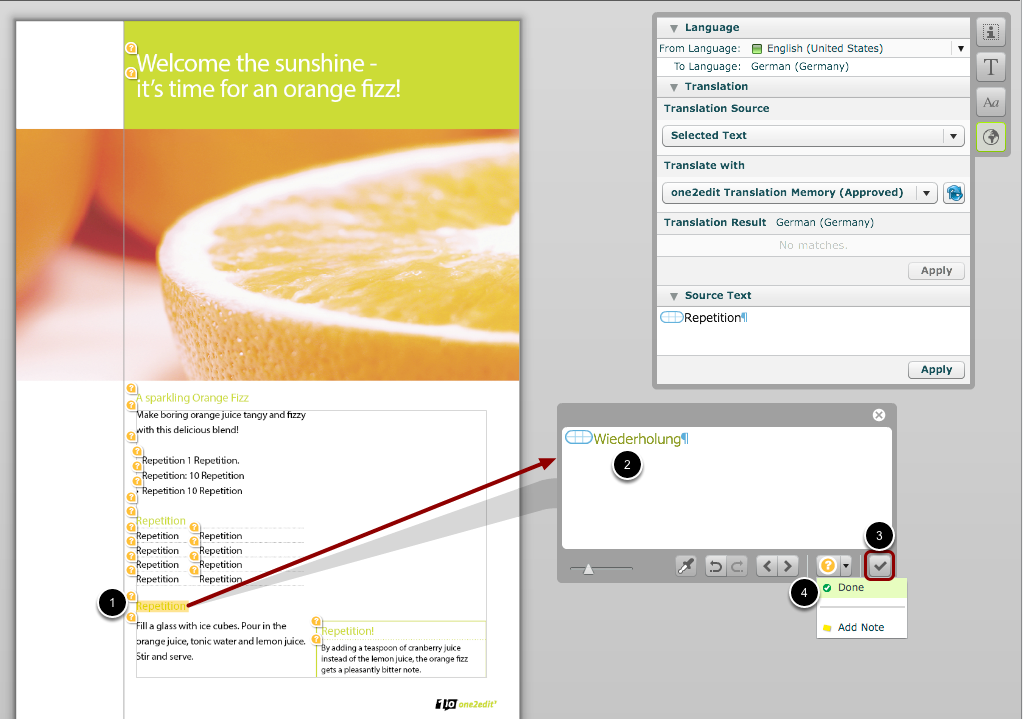
- Select a job segment that is repeated frequently throughout the document.
- Translate the job segment as normal.
- Click 'Apply'.
- Set the job segment's status to 'Done'.
Save document
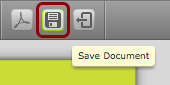
Save the document by clicking on the 'Save Document' button.
This will store the recently translated segments as part of one2edit's Temporary Translation Memory.
Temporary translations stored
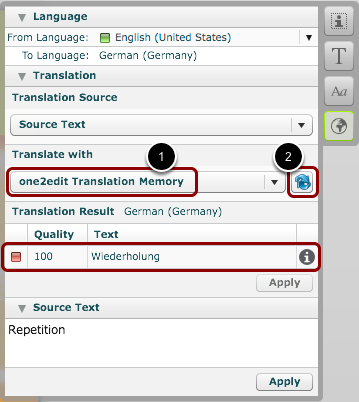
As soon as the document is saved, all translations are written to the temporary translation memory. These translations can now be seen in the 'Translation Result' area, with a red square beside them, as shown.
If no temporary translations are shown, even after you have saved the document, please check the following:
- Ensure that 'one2edit Translation Memory' is selected as the 'Translate with' option.
- Click the 'Refresh' button.
NOTE:
Choosing 'one2edit Translation Memory (approved)' as the 'Translate with' option will only display those matches from the permanent translation memory (i.e. marked with 'green' squares).
NOTE:
The translation memory window is automatically refreshed when a job segment is selected. This process is for refreshing the window without changing the job segment.
Temporary translations can be used as normal
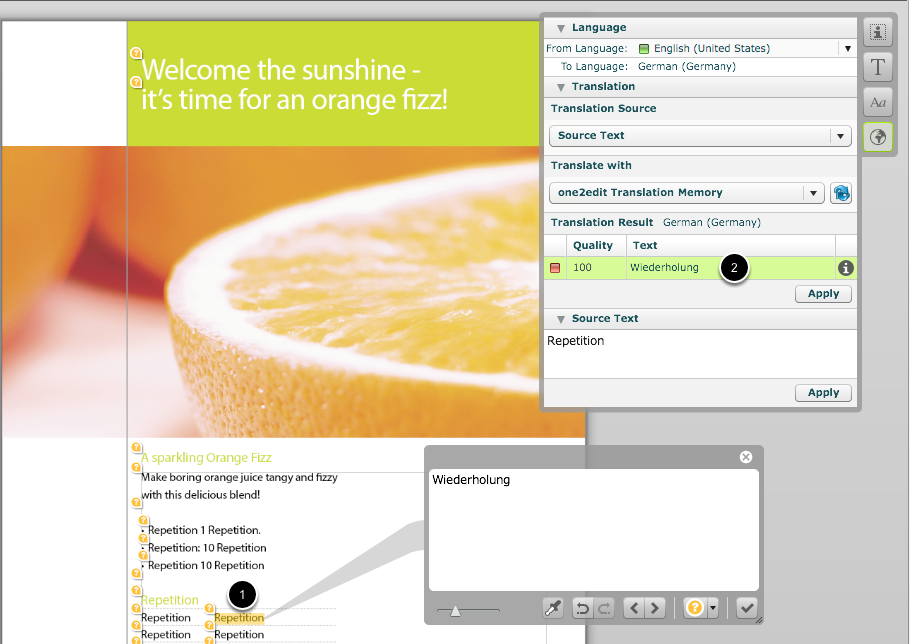
- The next time that you select a job segment with the same source text...
- ...the translation will appear in the 'Translation' panel.
NOTE:
If it does not appear, please ensure that 'one2edit Translation Memory' is selected as the 'Translate with' option.