
If a linked file is altered outside of InDesign, it will be marked as "outdated".
Such outdated links need to be relinked in order that the most up-to-date version is used (and to ensure that the correct high-resolution links are used when creating a PDF).
Altering a link may involve actually changing the file itself (e.g. cropping an image, renaming a file, etc.). However, it may just involve moving the file to a different folder or renaming the folder in which it resides.
Links marked as 'missing'
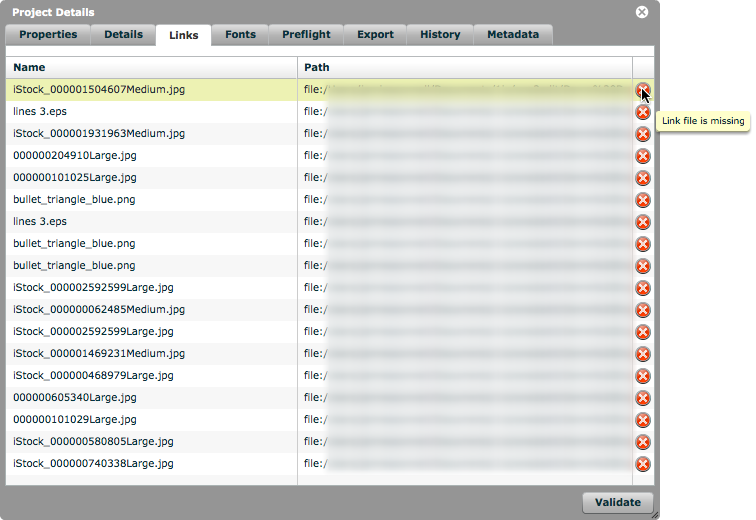
Any missing or 'outdated' links will be marked as 'missing' in the 'Links' tab for the project.
Open 'Links' section of 'Document Info' panel
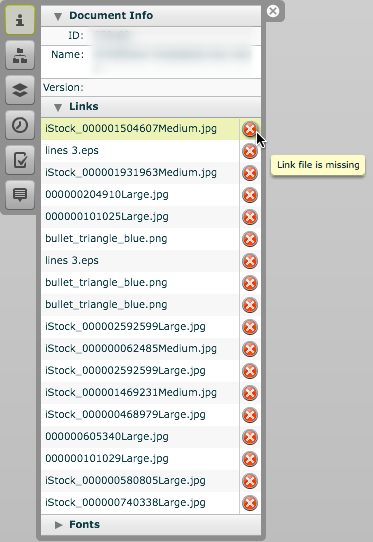
In the master document, expand the 'Links' section of the 'Document Info' panel.
All of the links are listed here, with a red 'X' beside each missing link.
Click 'X' and choose the correct link

Click the red 'X' beside a missing link and a 'Replace Image' window will open, as shown.
- Browse to the image
- Select the image
- Click 'Replace'.
This will inform the system of where the image now resides.
NOTE:
If a different image is to be used, you can simply choose this new image (as is done in InDesign® desktop).
Other 'outdated' links may be found automatically
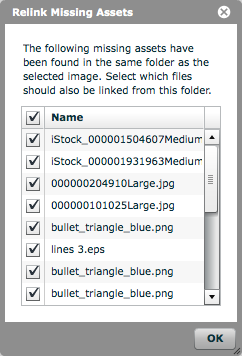
If other outdated links exist in the document, the system will also check for them in the new location.
If the system does find any files with the same filename as an outdated link, it will ask if you wish to also relink those.
Use the checkboxes to select/deselect any links, and click 'OK'.
Links no longer 'outdated'
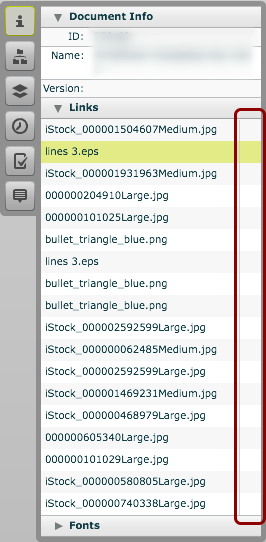
Any links that were relinked will no longer be marked as 'missing'.