
Non-admin users can be permitted to export fully completed jobs from their 'Job Archive' tab. The non-admin users need to be in a user group that permits both access to the 'Job Archive' tab, as well as the ability to export documents.
This lesson shows how to switch these permissions on for a user group.
NOTE:
A user who is permitted to export documents from the 'Job Archive' tab is not limited to exporting a PDF file type. They will also be able to export InDesign files, TMX files, InDesign packages, etc.
NOTE:
It is also possible to change the 'Default Low Res. PDF Joboption' setting under 'Settings > Client Workspace Settings' to a high-resolution PDF preset. This will allow any user to export a high-res PDF by using the normal low-res PDF export button.
NOTE:
High-resolution PDFs can only be exported if an appropriate PDF preset has been uploaded to the one2edit™ workspace.
User Group 'Permissions' Tab
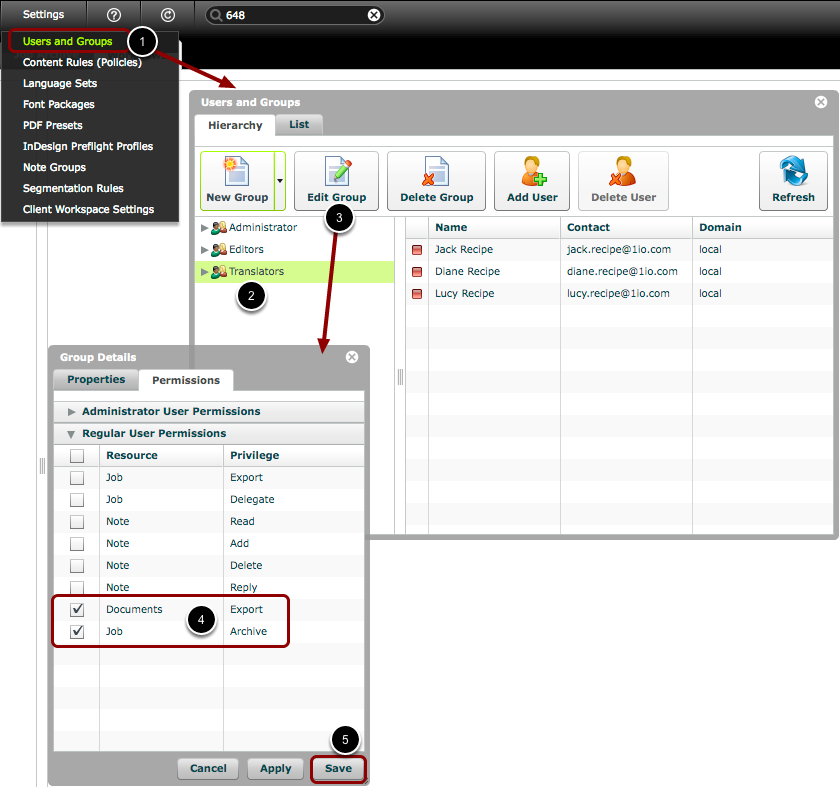
- Click 'Settings > Users and Groups'.
- Select the user group to edit
- Click the 'Edit Group' button to open the 'Group Details' window.
- Switch on the permissions for 'Job > Archive' and 'Documents > Export' in the 'Permissions' tab.
- Click 'Save'.
'Job Archive' Tab
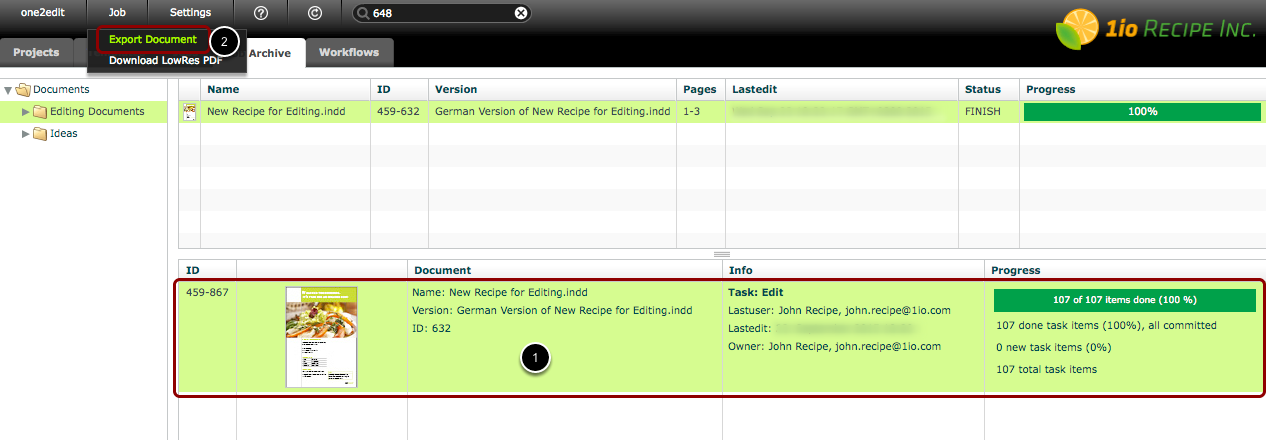
To export a document from the 'Job Archive' tab, select the finished document (1) and click 'Job > Export Document' (2).