
You can use InDesign's 'Book' functionality in one2edit™ to combine documents into a single PDF.
File > New Book
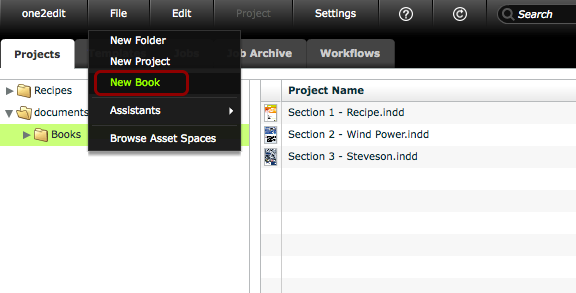
Choose a folder and click 'File > New Book'.
'New Book' window
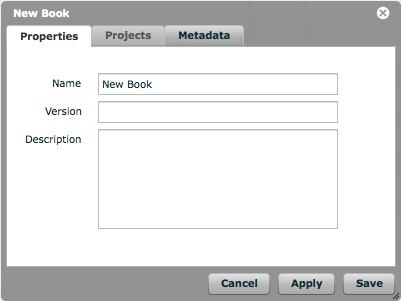
The 'New Book' window will open.
Fill in details
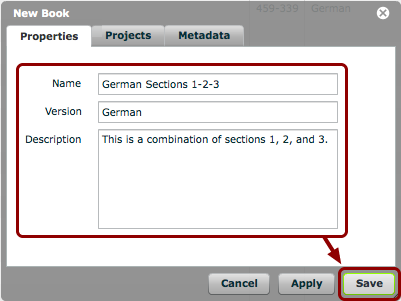
Fill in the details for your new book, using the 'Name', 'Version', and 'Description' fields.
Then click 'Save'.
New 'Book' created
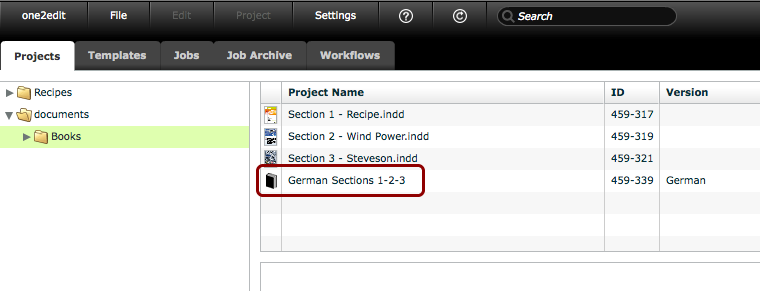
Your new book is created in the selected folder.
You now need to add documents to this book to combine them into a single PDF.
Open 'Book Details' window
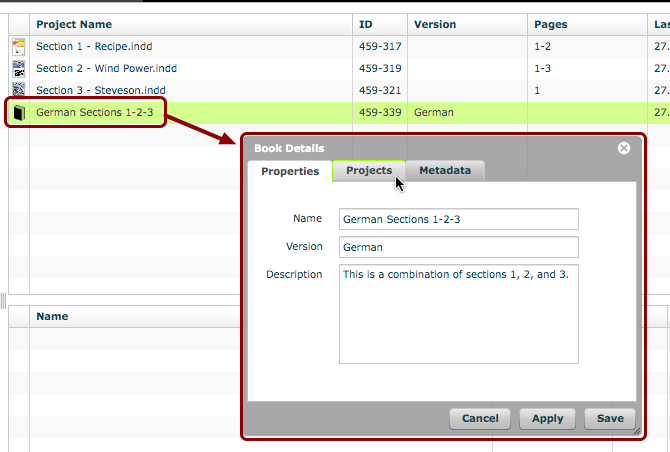
Double-click on the book to open the 'Book Details' window.
Click the 'Projects' tab
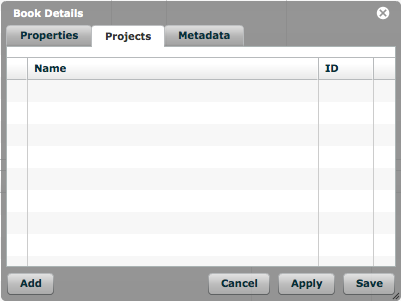
Click on the 'Projects' tab.
It is into this tab that you will drag and drop the documents that will make up the final PDF.
Drag and Drop documents
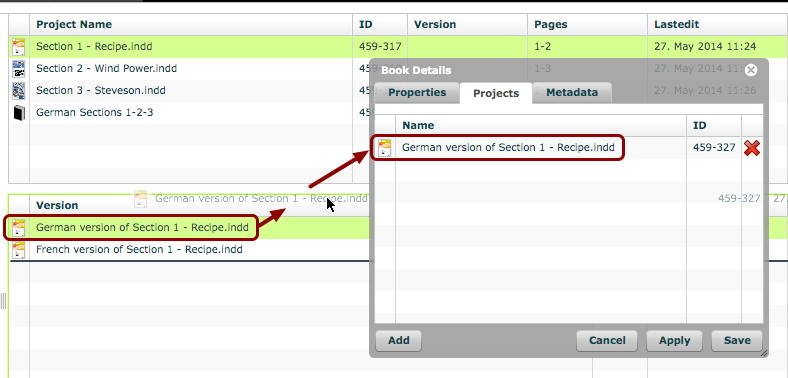
Drag and drop the necessary master and/or version documents into the 'Projects' tab.
Click 'Save'
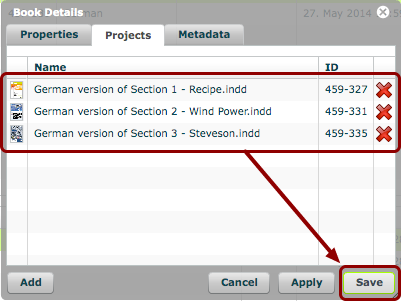
Once all of the appropriate documents have been dropped into the 'Projects' tab, click 'Save'.
NOTE:
The order of the documents in this view is the order in which they will be exported to the PDF. You can rearrange these documents in this tab.
Documents shown within 'Book'
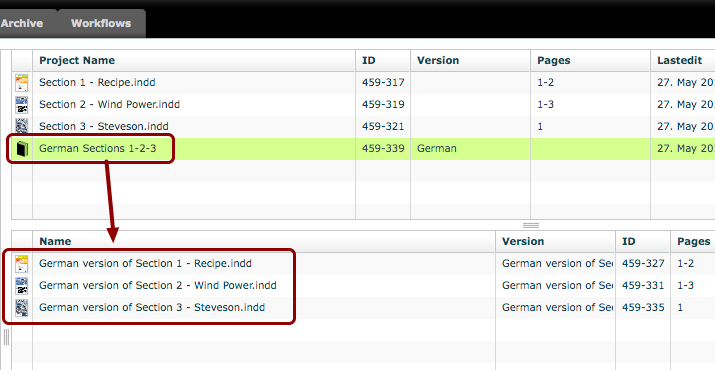
The documents are now displayed in the 'version document' section below the book.
NOTE:
The order of the documents in this view is the order in which they will be exported to the PDF. You can rearrange these documents within the 'version document' view.
Export PDF
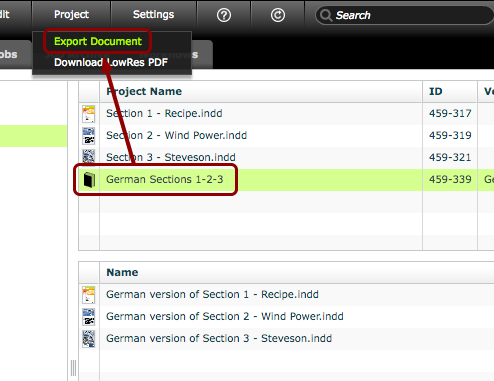
At any point, you can export a PDF of the book by selecting the book and clicking 'Project > Export Document'.