
one2edit™ has a 250MB file size upload limit through a browser.
One way around this limit is to use the one2edit™ AIR Client. Another way is to simply upload all files individually, as long as no single file is 250MB or larger.
NOTE:
This lesson focuses on the 'Links' folder, usually where image assets are stored. However, the same idea of selecting multiple files for upload can be used anywhere with any files.
File > Browse Asset Spaces
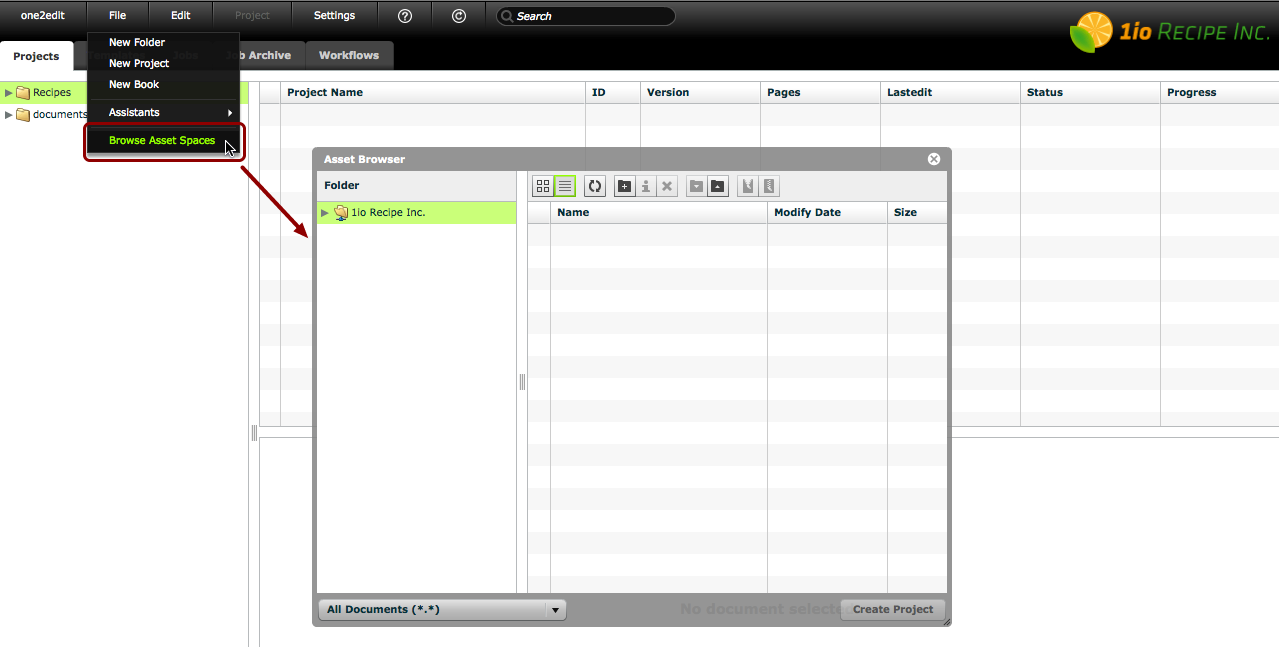
Click 'File > Browse Asset Spaces' to open the Asset Browser window, as usual.
Manually create a folder

Because you will not be uploading and extracting a .zip file, no folder will be automatically created for your assets.
Click the 'New Folder' button to create a new folder in your asset space.
Name your folder
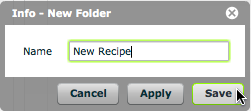
Give your folder a meaningful name and click 'Save'.
NOTE:
This will be the folder to which you will upload your INDD or IDML file.
Manually create a folder for your images

Again, because you are not going to be extracting a .zip file, you will need to create your own 'Links' subfolder.
Browse into your new folder and click the 'New Folder' button.
Name the subfolder 'Links'
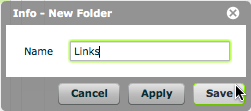
Give this subfolder the name 'Links'. This allows one2edit™ to automatically find and link the images when your project is created.
Click 'Upload'

Browse to the 'Links' folder and click the 'Upload' button.
Select assets for upload
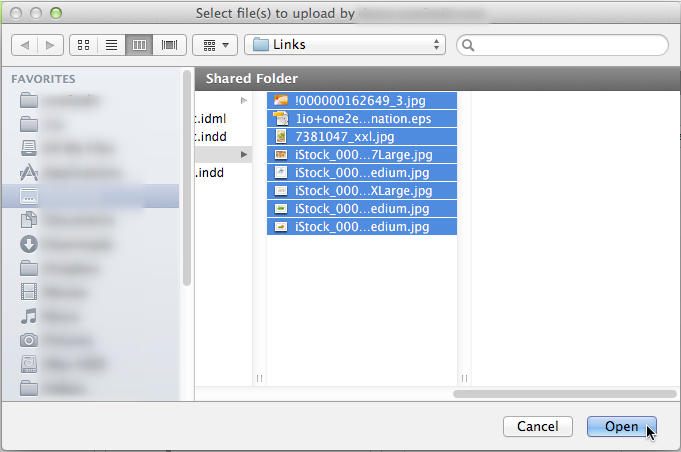
Select multiple files for upload and click the 'Open' or 'OK' button.
NOTE:
Depending on your operating system (OS), this window may look different. However, the principle is the same for any OS.
Upload Progress Window
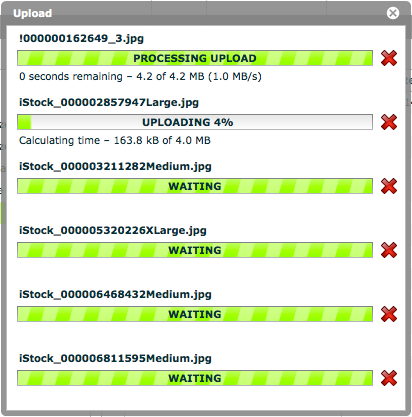
The upload progress of each file will be shown in an 'Upload' window. The files will be uploaded one at a time, thereby not reaching the 250MB limit for any one file.
Uploaded files
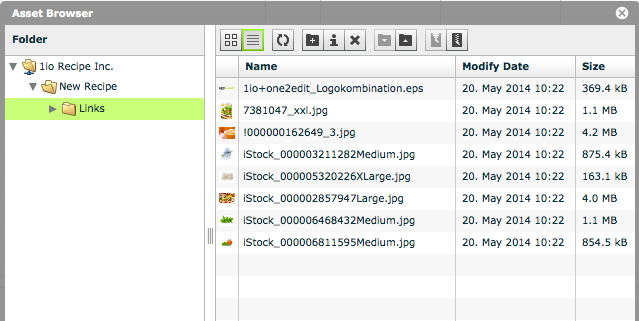
When the 'Upload' window closes, you will see all of your files in your folder on your asset space.