
Delegating a job to another user adds that other user to the current workflow step. Both the delegator and delegatee will be able to see (and work on) the job in their 'Jobs' queue.
NOTE:
You may not have been given permission to delegate jobs. If this is the case, and you feel that it is in error, please speak to your local one2edit™ administrator.
Delegate Job via the 'Jobs' tab
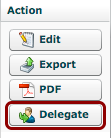
You can delegate jobs via the 'Jobs' tab.
To do this, click on the 'Delegate' button in the 'Action' column, as shown.
Delegate Job via the Workflow
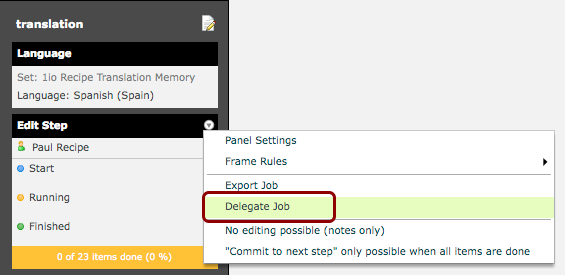
If you have administrative access to projects in one2edit™, you can access the workflow window.
Jobs can be delegated from here by expanding the respective job-step menu, as shown.
Then click the 'Delegate Job' menu item to delegate this workflow step to another user.
NOTE:
This option is only available for workflow steps that are currently active in a running workflow. If a workflow step is finished, or has not yet begun, it is not possible to delegate it.
'Delegate Job' window
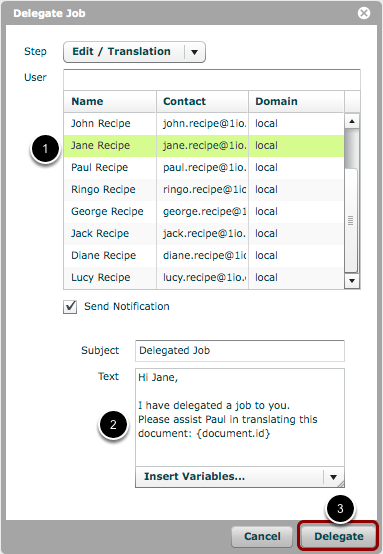
When you have taken one of the previous actions, the 'Delegate Job' window will open.
- Select a user from the users list. This list contains all of the users in the workspace. It is possible to use the text field at the top to filter the user list.
- A notification email can be created and automatically sent to the delegatee, if desired.
- Click 'Delegate' to continue.
Job (i.e. workflow step) has been delegated
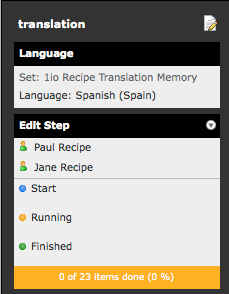
The selected user has now been added to the corresponding workflow step.
Any user that was already assigned to this step remains in the workflow.
NOTE:
Delegating a user simply adds another user to the current workflow step. It does not replace any users who were originally assigned to the step.