
It is sometimes necessary to edit an 'in progress' workflow (or indeed one that has been completed).
This may be to add new users or workflow actions.
Whatever the reason, the related steps are quite simple:
- Ensure that the related document is not currently being edited
- Open the workflow
- Pause the workflow
- Edit the workflow
- Resume the workflow
This lesson will demonstrate how to perform the above actions.
Ensure Document is not being Edited

The first thing to do is to check that the document is not currently being edited by another user. You can check this by looking for the notepad icon next to the document status.
If the document is open for editing, please ask your user to close the document.
NOTE:
You will need to refresh your one2edit™ view to check if the icon has been cleared. This can be done using the 'Refresh' button in the one2edit™ toolbar.
Double-Click on Document

Double-click on the document to open the Workflow view.
Pause the Workflow
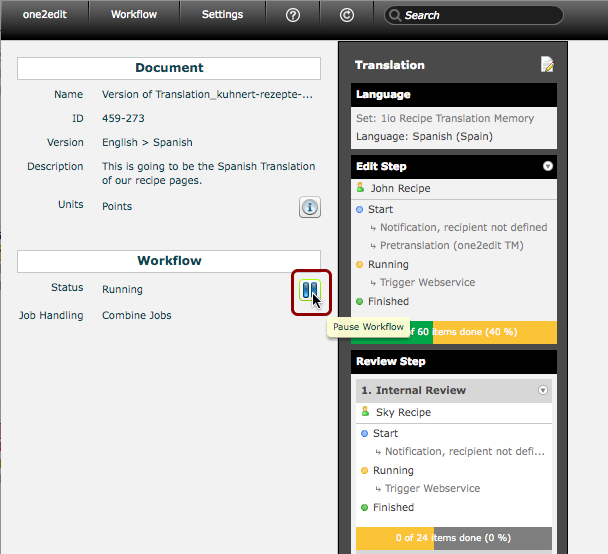
Click the 'Pause Workflow' button to pause the workflow.
Changes can only be made to a paused workflow.
Make Changes
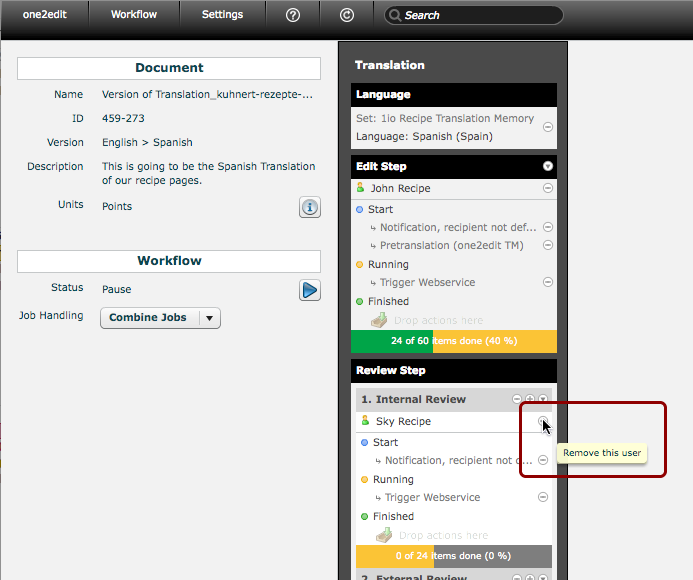
Changes can now be made to the paused workflow. In the screenshot above, we can see that the buttons to remove users and actions from the workflow have appeared.
Settings > Users and Groups
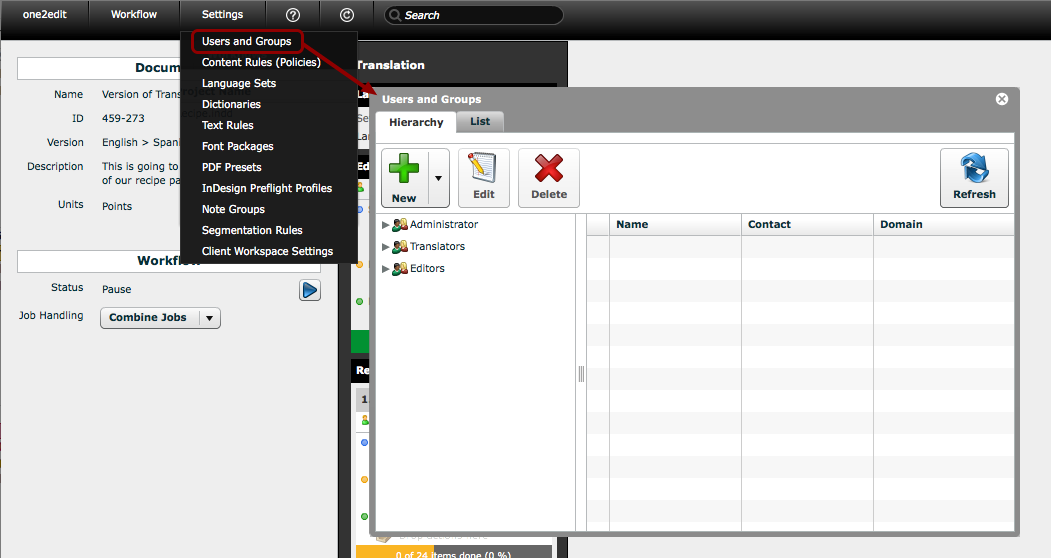
If you wish to add new users to the workflow, click on 'Settings > Users and Groups' to open the 'Users and Groups' window, as you would when originally setting up a workflow.
Drag and Drop Users
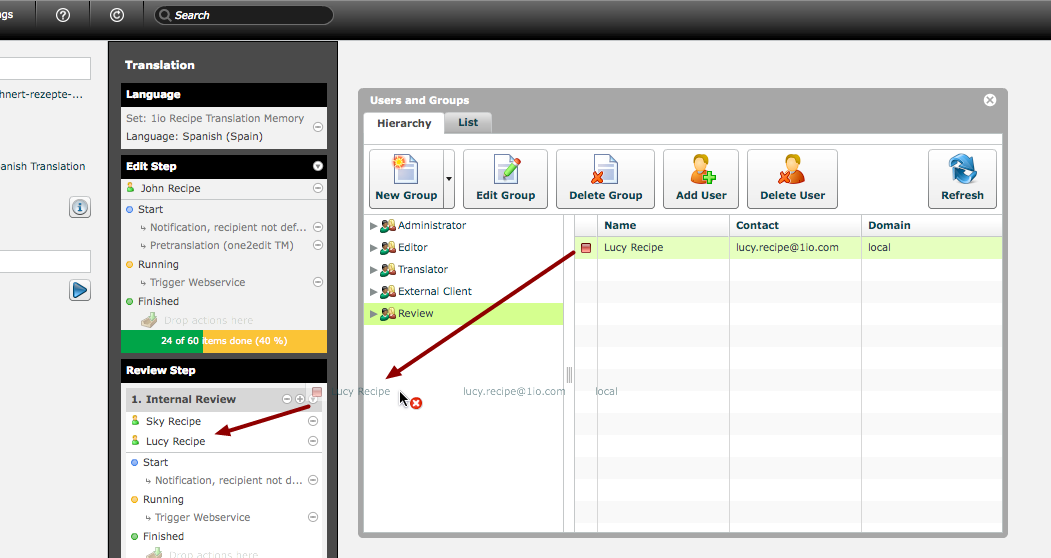
You can now drag and drop users from the 'Users and Groups' window to the workflow as normal.
Workflow > Actions
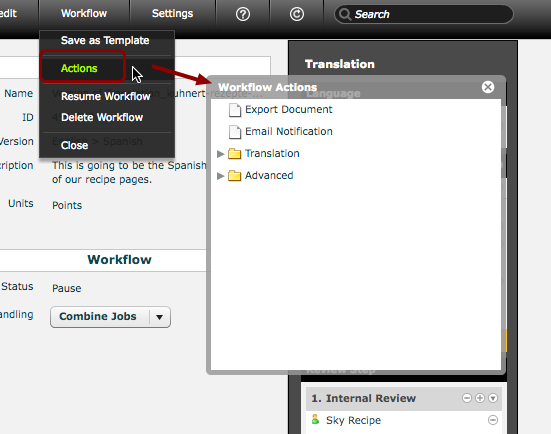
If you wish to add new automated actions to the workflow, click 'Workflow > Actions' to open the 'Workflow Actions' menu, as you would when originally setting up a workflow.
Drag and Drop Actions
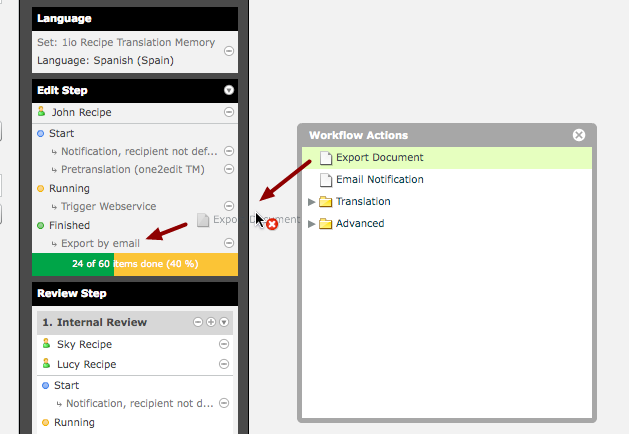
You can now drag and drop actions from the 'Workflow Actions' window to the workflow.
Resume Workflow
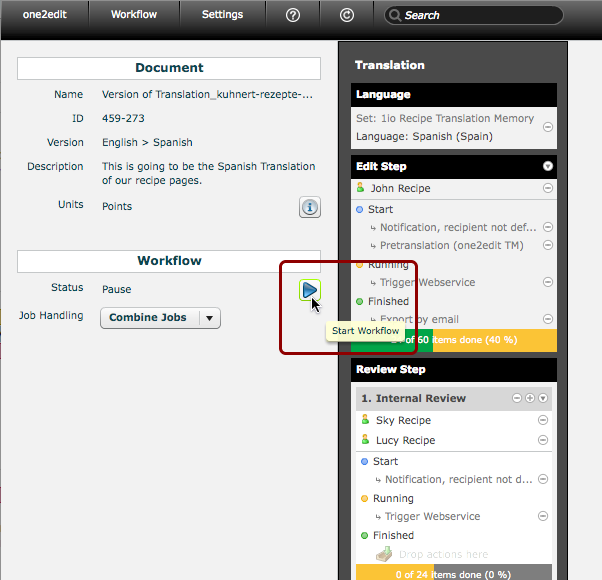
When you have made your changes, click the 'Start Workflow' button to resume the workflow from where it was paused.
NOTE:
No changes to the status of content elements within the document will have changed. These changes were only made to the workflow, not the document content.
Workflow has Resumed
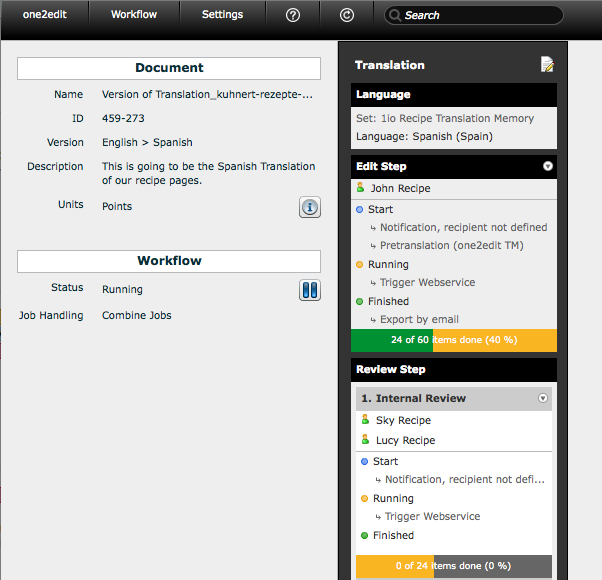
The workflow has now resumed from where it was paused.
In this example, Lucy Recipe will now have visibility of the Internal Review job, and when the Edit Step is 100% complete, a document will be exported by email.
Congratulations!
You have edited an 'in progress' workflow!