
If you need to reuse the same workflow frequently, you might want to create a workflow template.
A workflow template can be created via the 'Workflows' tab or via the workflow window.
In this lesson we will create a workflow via the workflow window.
Open workflow window
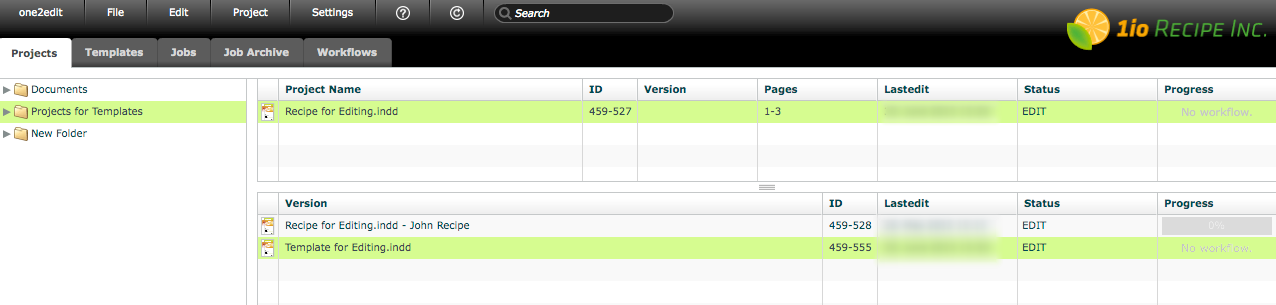
To open the workflow window, double-click on a version document.
Click 'Workflow > Assign Empty Workflow'
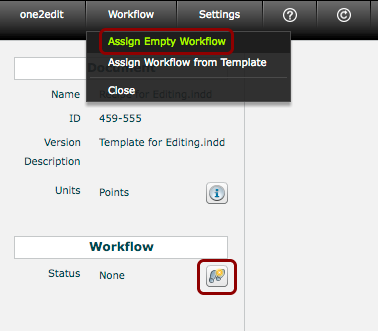
To create a new, empty workflow, click on 'Workflow > Assign Empty Workflow' or the footprints icon, as shown.
NOTE:
If there are multiple content groups in the master document, then a worfklow created in this way will contain multiple workflow tracks. Each track will match the name of a content group.
Populate your workflow
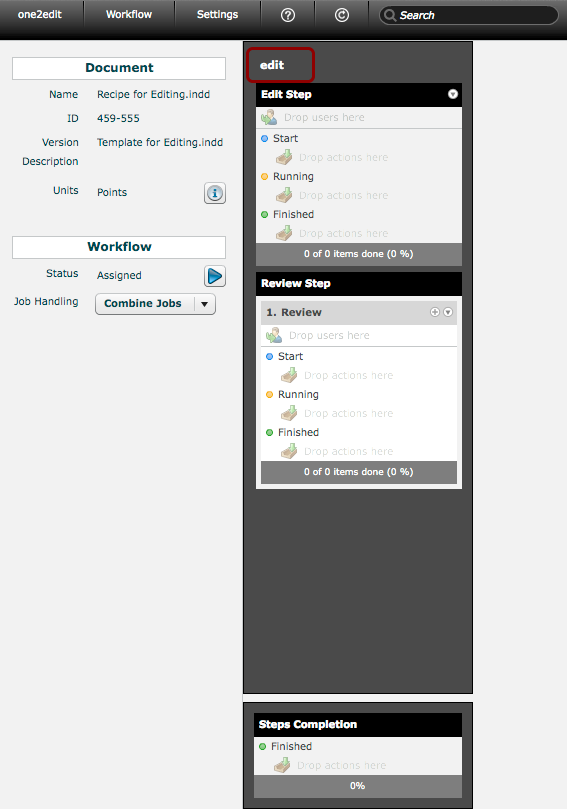
Populate your workflow as usual with users and automated actions.
NOTE:
The name of any workflow track created will automatically match that of a content group in the current master document.
Click 'Workflow > Save as Template'
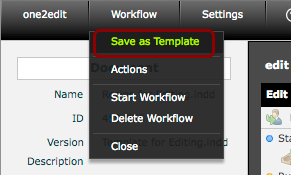
When you have set up your workflow as desired, click 'Workflow > Save as Template'.
Save workflow as template
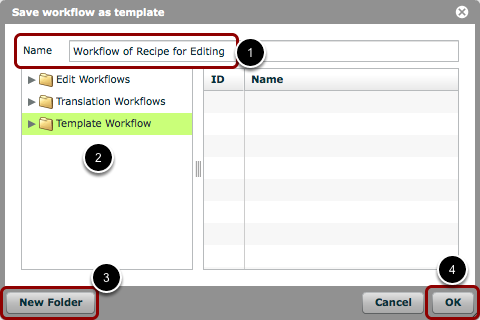
- Give your workflow a name.
- Select the workflow folder into which you want to save your template.
- You can also create a new subfolder.
- Click 'OK' once you have chosen the correct folder.
NOTE:
The folders listed here are the ones from the 'Workflows' tab.
NOTE:
It is not possible to create a 'root' folder via this window. You must do that directly in the 'Workflows' tab.
'Workflows' tab
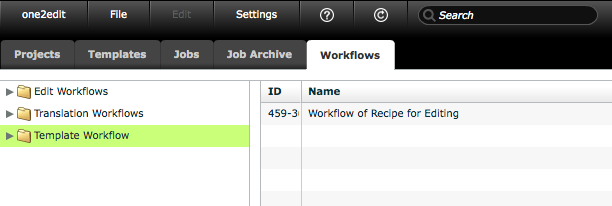
Your workflow template is now listed in the 'Workflows' tab.