
If you need to reuse the same workflow frequently, you might want to create a workflow template.
A workflow template can be created via the 'Workflows' tab or via the workflow window.
In this lesson we will create a workflow via the 'Workflows' tab.
Create a New Workflow
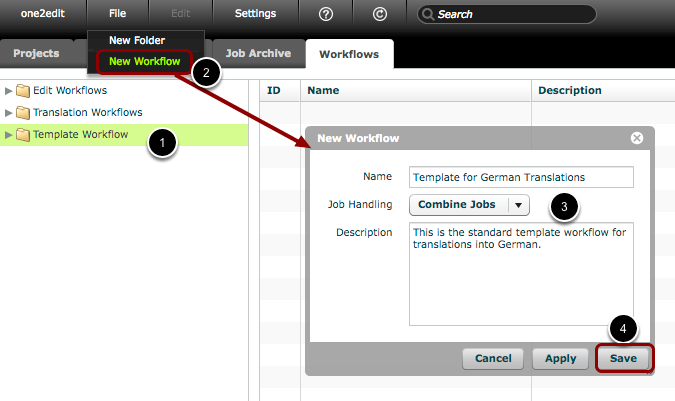
In the 'Workflows' tab:
- Select a folder as your new template's home.
- Click 'File > New Workflow' to open the 'New Workflow' window.
- Name your new workflow, define the 'Job Handling', and, if desired, add a description of your new workflow.
- Click 'Save'.
Open new workflow

The new workflow is now listed in the 'Workflows' tab.
You will now need to add some content groups to the workflow.
Double-click the new workflow to open it.
Click 'File > New Content Group'
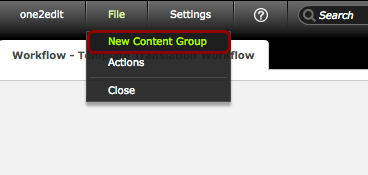
Each workflow track corresponds to a content group within your master document.
Create a new workflow track in this workflow by clicking 'File > New Content Group'.
NOTE:
If your master document contains multiple content groups, you should create multiple workflow tracks in this way. You will then need to name each workflow track to match the name of a content group.
Name and populate your workflow track
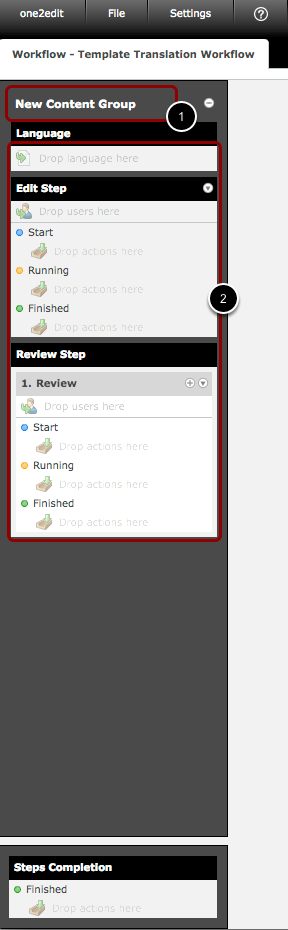
- Rename the workflow track to match the content group name in your master document. To do this, double-click on 'New Content Group', which is the default name.
- Populate the workflow track with a target language, users, and automated actions, as normal.
NOTE:
Please remember that the name of the workflow track must be a 100% match to the name of the content group within your master document. These names are case sensitive.
Click 'File > Close'
Click 'File > Close' to return to your 'Workflows' tab.
All changes that you have made to the workflow are saved automatically as you are making them, so there is no need to explicitly click a 'save' button.