
The segmentation of document content to match the translation units in your existing translation memory (TM) is vital.
To this end, you will need to import your existing segmentation rules to one2edit™ using the Segmentation Rules eXchange (SRX) standard file-format.
Click 'Segmentation Rules'
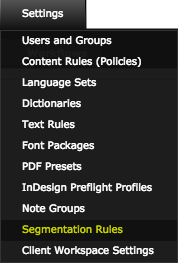
Select the 'Segmentation Rules' option from the 'Settings' menu.
Click 'New'
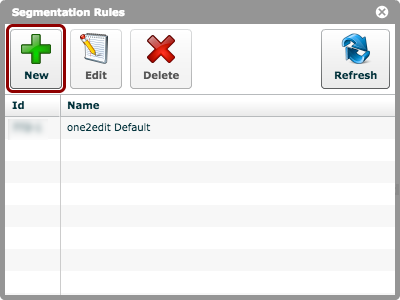
Click the 'New' button to create a new set of segmentation rules.
NOTE:
The 'one2edit Default' rules are included with the Client Workspace by default. These rules segment the document text into sentences. However, there may be proprietary parts to your own segmentation rules that we have not included (e.g. removal of InDesign inline characters from segments, ensuring that product names do not trigger a false break, etc.).
Click 'Import'
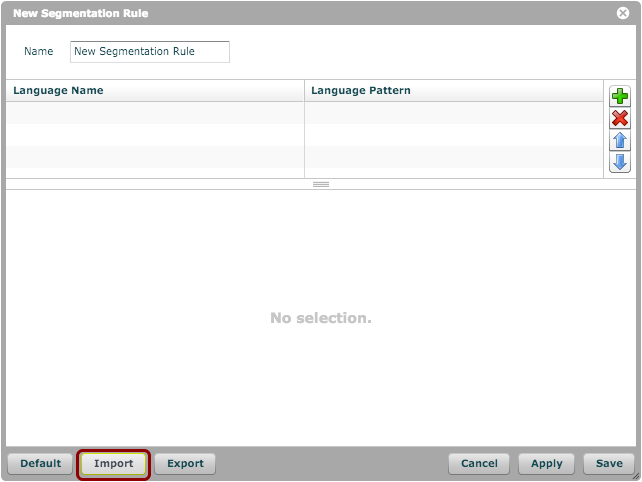
In the 'New Segmentation Rule' window, click the 'Import button to populate the rule using an SRX file.
This will open a standard file-browsing window, that allows you to select the SRX file from your local hard-drive.
Name & Save your Rules
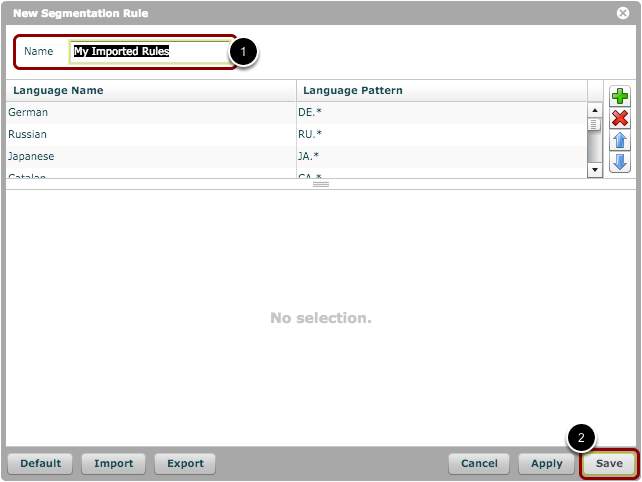
- Name the new rule set.
- Click 'Save'.