
This lesson will tell you how to move users from one user group to another.
NOTE:
You cannot drag and drop users from one user group to another.
This means that moving a user requires two separate steps:
- Adding the user to the new user group.
- Deleting the user from the old user group.
NOTE:
Moving a user to another user group will not affect the jobs that have been assigned to that user (i.e. the user is still the same user). However, if jobs were assigned to entire user groups (i.e. not to a specific user), then the user will no longer have access to jobs that were assigned to the old user group.
NOTE:
If a user belongs to two groups at once, that user will have the permissions from both groups added together.
Part 1: Adding a User to a one2edit™ User Group
We will first add the user to the new (target) user group.
'Users and Groups' Window
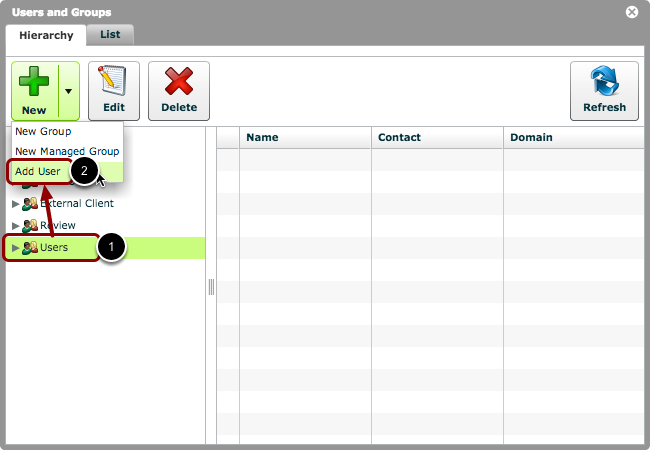
- Select the group to which you want to move the user, i.e., the target user group.
- Click 'New > Add User' to open the 'Add User to Group...' window.
Add the existing User to the new User Group
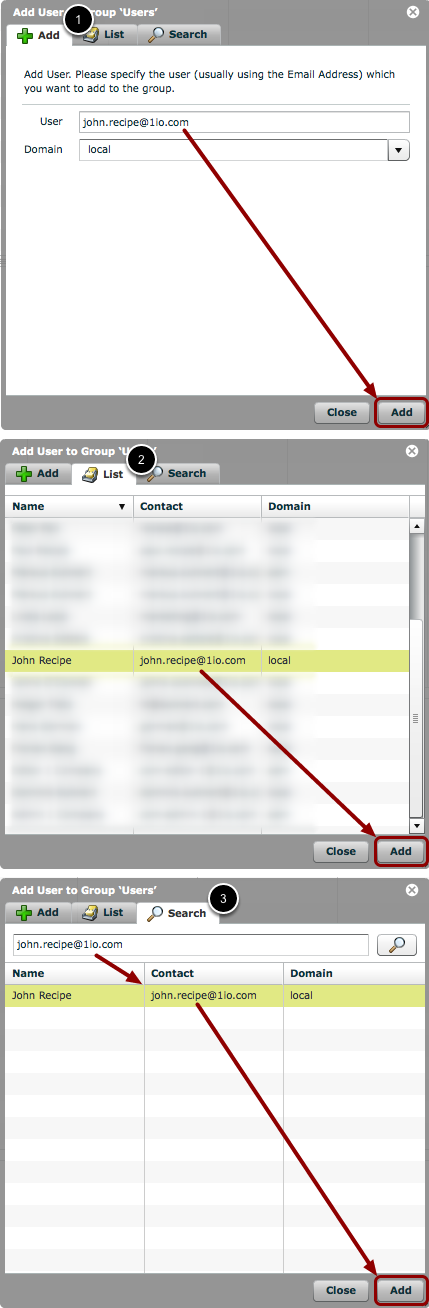
You can add the user to the new user group in one of three ways:
- Manually enter the user's email into the 'Add' tab and click the 'Add' button.
- Choose the user on the 'List' tab and click the 'Add' button.
- Search for the user in the 'Search' tab and click the 'Add' button.
Part 2: Deleting the User from the old User Group
Once the user has been added to the correct user group, they still need to be deleted from the old user group.
NOTE:
It is possible for a user to belong to two or more user groups at once. In such a case, the user will have a combination of the permissions from all groups to which they are assigned.
Delete the existing User from the old User Group
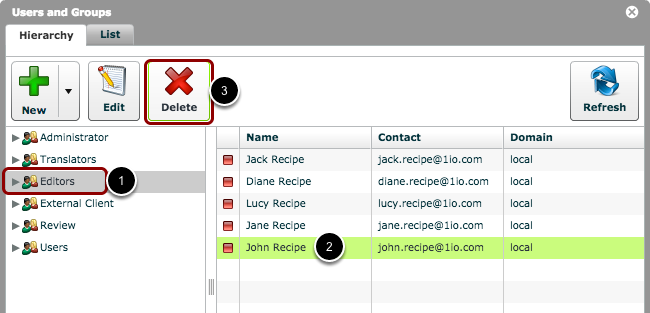
- Select the group from which you want to delete the user, e.g. the 'Editors' group.
- Select the user whom you want to delete from that group.
- Click the 'Delete' button.
NOTE:
Ensure that the user is selected, not the group. If the User Group is selected, you may end up deleting the entire group.
Confirm your decision
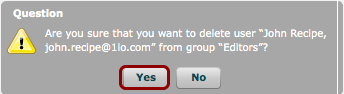
Confirm your decision to delete the user from the group by clicking 'Yes'.
Be sure to read the text in the confirmation dialog to check that you are indeed deleting a user from a group and not an entire group.
NOTE:
The user will now have the permissions of the new user group, and will no longer have the permissions from the old user group.
NOTE:
Deleting a user from a group is not necessarily the same as deleting that user from the Client Workspace. If, for example, a user is present in multiple groups, then deleting that user from one group will not delete them from the other groups. Therefore, that user will remain 'active' in the Client Workspace.