
In this lesson, you will create a 'Language Set' and assign languages to it.
Language sets can be used to segregate groups of languages for use with specific brands/products, or even to simply segregate languages by target region.
Click 'Language Sets'
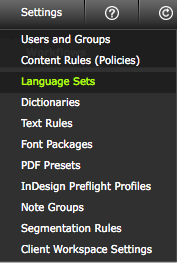
Click the 'Language Sets' option in the 'Settings' menu.
Create a new Language Set
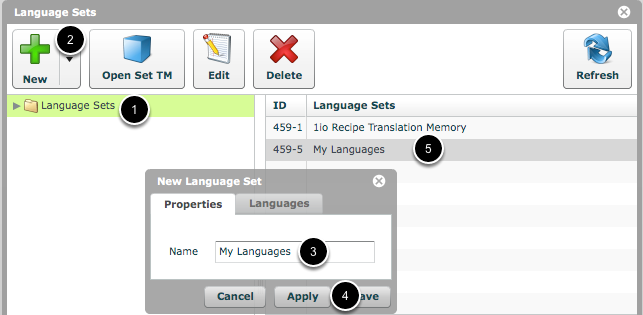
- Select the 'Language Sets' folder (or create a new folder and select that).
- Click 'New Set'.
- Name the new Language Set.
- Click 'Apply' to save changes and activate the 'Languages' tab.
- The new language set will appear in the 'Language Sets' column.
NOTE:
Clicking 'Save' will close the 'Language Set Details' window. To re-open it, select the new Language Set and click 'Edit Set'.
Assign Languages to Language Set
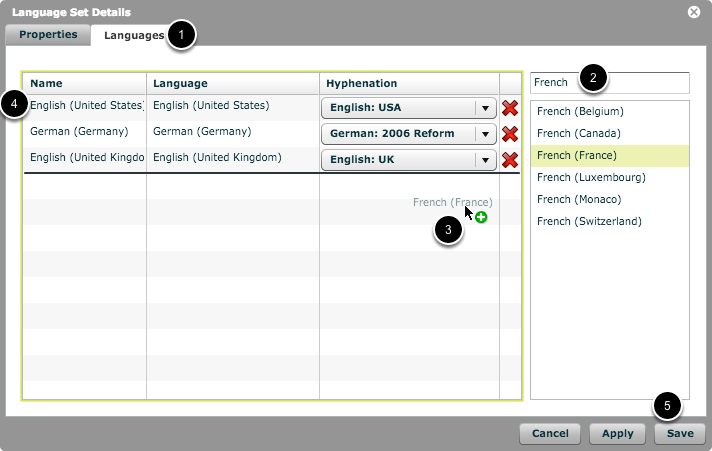
- Select the 'Languages' tab.
- Filter the list of languages by typing into the filter field (optional).
- Drag and drop the required languages to the language list and choose their hyphenation settings.
- The languages has now been assigned to this language set.
- Click 'Save'.
NOTE:
Ensure that you add the source language to your language set. Otherwise, matches between the target languages and this source language cannot be created.
Viewing the content of a Language Set
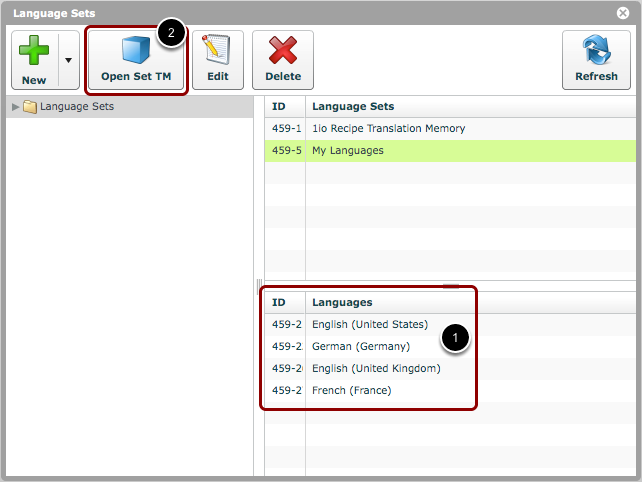
- Selecting a language set in the 'Language Sets' window shows the languages which are in that set.
- Click 'Open Set TM' to view the translation memory contained within this language set.
NOTE:
A brand new language set will not contain any translation memory content. You must import your own content via TMX or Excel XML files. Alternatively, you can populate the TM by committing translations from completed translation jobs.