
The 'Text > Styling' portion of a Content Rule defines which styling override options are available to a user.
NOTE:
The options mirror those of the InDesign palettes of the same names.
'Character Palette'

The 'Character Palette' contains the following styling options:
- Font - The font of the selected characters can be changed. The font name must be typed, as there is no drop-down menu.
- Typeface - The font style of the selected characters can be changed. The font typeface must be typed, as there is no drop-down menu.
- All Caps - The selected characters will be capitalized.
- Small Caps - The selected lower-case characters will become smaller, capitalized versions.
- Superscript - The selected characters will appear smaller, and be located above the baseline.
- Subscript - The selected characters will appear smaller, and be located at or below the baseline.
- Underline - The selected characters will be underlined.
- Strikethru - The selected characters will be crossed out.
- Size - Adjust the character size.
- Leading - Adjust the space between lines of text.
- Kerning - Adjust the space between certain characters in a line of text, using their natural shape and slope to improve their appearance and create a smooth flow of movement for the eye.
- Tracking - Tracking adjusts the character spacing in the selected text. You can change it to enhance readability, or to fit more text in a column.
- Vertical scale - Adjust the height of individual characters.
- Horizontal scale - Adjust the width of individual characters.
- Baseline shift - Raise or lower a character relative to the baseline.
- Skew - Apply horizontal or vertical slant to a character.
- Language - This will permit users to adjust the language setting for any selected text.
'Paragraph Palette'
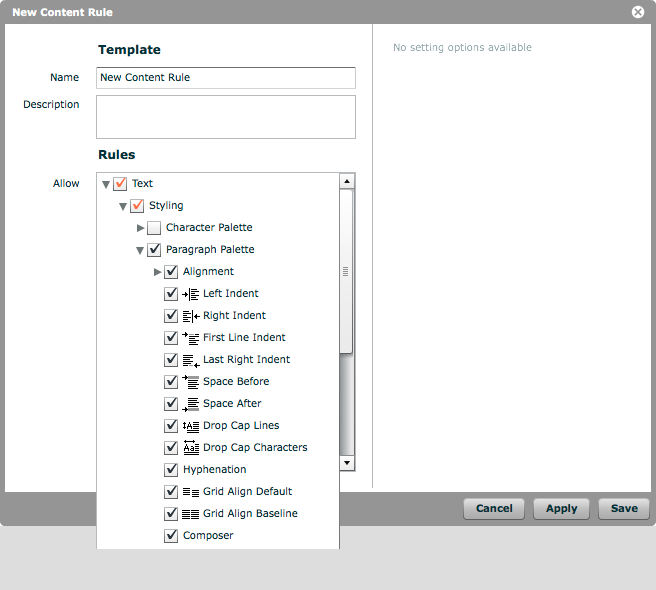
The 'Paragraph Palette' contains the following styling options:
- Alignment - All paragraph alignment options are described in the next step.
- Left Indent - Tab size for a left indent used throughout the page.
- Right Indent - Tab size for a right indent used throughout the page.
- First Line Indent - Tab size for the indent of a line following a hard break.
- Last Right Indent - Tab size for the indent of a line before a hard break.
- Space Before - The size of the blank space before a paragraph begins.
- Space After - The size of the blank space after a paragraph ends.
- Drop Cap Lines - Define the number of lines by which the character should be dropped. This value includes the line on which the text resides.
- Drop Cap Characters - Define the number of drop cap letters here.
- Hyphenation - Check this box if hyphenation should be applied to the text segment.
- Grid Align Default - Columns of text won't be aligned to the baseline grid and their location within the page can vary.
- Grid Align Baseline - Columns of text will be aligned to the baseline grid so that consistency in the location of text elements on a page is ensured.
- Composer - Change the composer that is used.
'Paragraph Palette > Alignment'
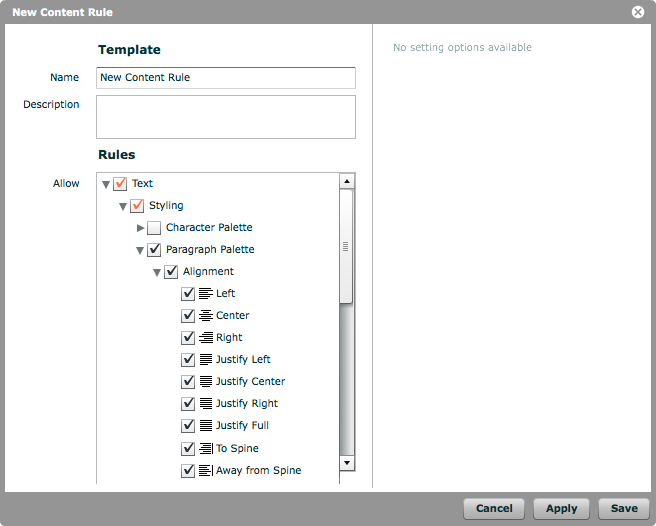
The 'Alignment' section contains the following styling options:
- Left - Text segments will be left-aligned.
- Center - Text segments will be aligned along the center of the text frame.
- Right - Text segments will be right-aligned.
- Justify Left - Text segments will be aligned to both sides of a text frame except for the last line, which will be left-aligned.
- Justify Center - Text segments will be aligned to both sides of a text frame except for the last line, which will be centered.
- Justify Right - Text segments will be aligned to both sides of a text frame except for the last line, which will be right-aligned.
- Justify Full - Text segments, including the last line, will be aligned to both sides of a text frame.
- To Spine - Text segments on a left-hand page will be right-aligned. Those on a right-hand page will be left-aligned.
- Away from Spine - Text segments on a left-hand page will be left-aligned. Those on a right-hand page will be right-aligned.