
'Workflow Actions' window
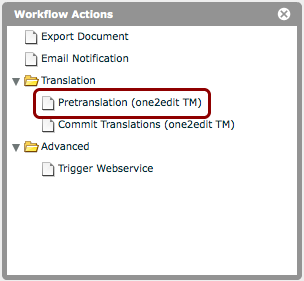
Actions can be added to a workflow from the 'Workflow Actions' window (accessed via 'File > Actions' in the workflow view).
This lesson details the 'Pretranslation (one2edit TM)' action.
The 'Pretranslation (one2edit TM)' action is used to automatically pretranslate the document using the one2edit™ built-in translation memory (TM).
Pretranslation (one2edit TM)
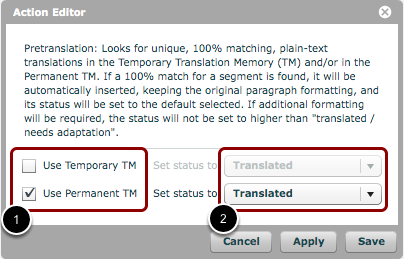
After dragging the 'Pretranslation (one2edit TM)' action into the action field, double-click on it to open the 'Action Editor' window.
(1) Choose which translation memory (TM) to use during the pretranslation process.
The options are:
- Use Temporary TM: During a translation job, a temporary translation memory stores the current translations. This option allows the pretranslation action to match against translations from any active job with the same source and target languages (from the same Language Set).
- Use Permanent TM: The 'permanent' translation memory consists of those translations stored in the one2edit™ Language Set (i.e. typically those that have been through a review/approval process). This option allows the pretranslation action to match against this permanent translation memory.
Both options can be selected, if desired.
(2) Choose what status any pretranslated segments will be given.
The options are:
- Needs Translation: The status marker for any pretranslated item will not change, i.e., it will be left as 'needs translation' (yellow).
- Translated: Pretranslated items will be marked as 'done' (green), but not committed to the first review step (if there is one).
- Translation Finished: Pretranslated items will be automatically moved to the first review step in the workflow (if there is one).
The option chosen will depend on your workflow requirements.