
A selected folder in one2edit™ stays active until either another folder is selected or until it is deselected. In this lesson you learn how to deselect a folder.
Selected folder
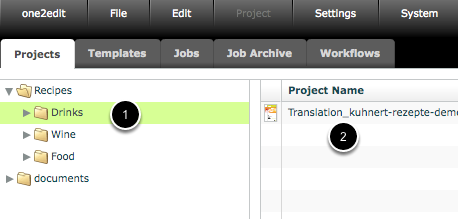
A selected folder is always highlighted (1) and its content listed on the right-hand side of the 'Projects' tab (2).
Deselecting a folder
There are two different ways to deselect a folder: one for Mac computers and one for Windows computers.
- When using a Mac computer, keep the 'Cmd' button pressed and click on the selected folder to deselect it.
- When using a Windows computer, keep the 'Strg' button pressed and click on the selected folder to deselect it.
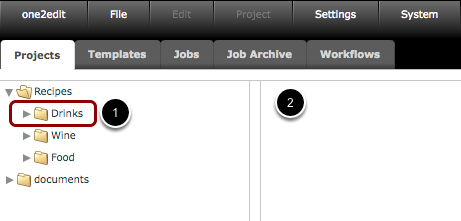
Once deselected, the folder will no longer be highlighted (1) and its content is no longer displayed on the right-hand side of the 'Projects' tab (2).